
Generating and managing API keys
Before you can make API calls, you need an API key. This page walks through creating your first key, what the format looks like, and how to manage keys safely over time.
Prerequisite — make a credit purchase first
API access unlocks after your first credit purchase. Any PAYG package or any monthly plan qualifies. The gate is there to keep scripted abuse of the free signup credits off the platform — the dashboard itself stays fully usable on the free tier.
After your first purchase, you can generate as many API keys as you need — no per-account limit.
Opening the Developer page
- Log into your dashboard.
- Click Developer in the sidebar.
- You land on the Developer page.
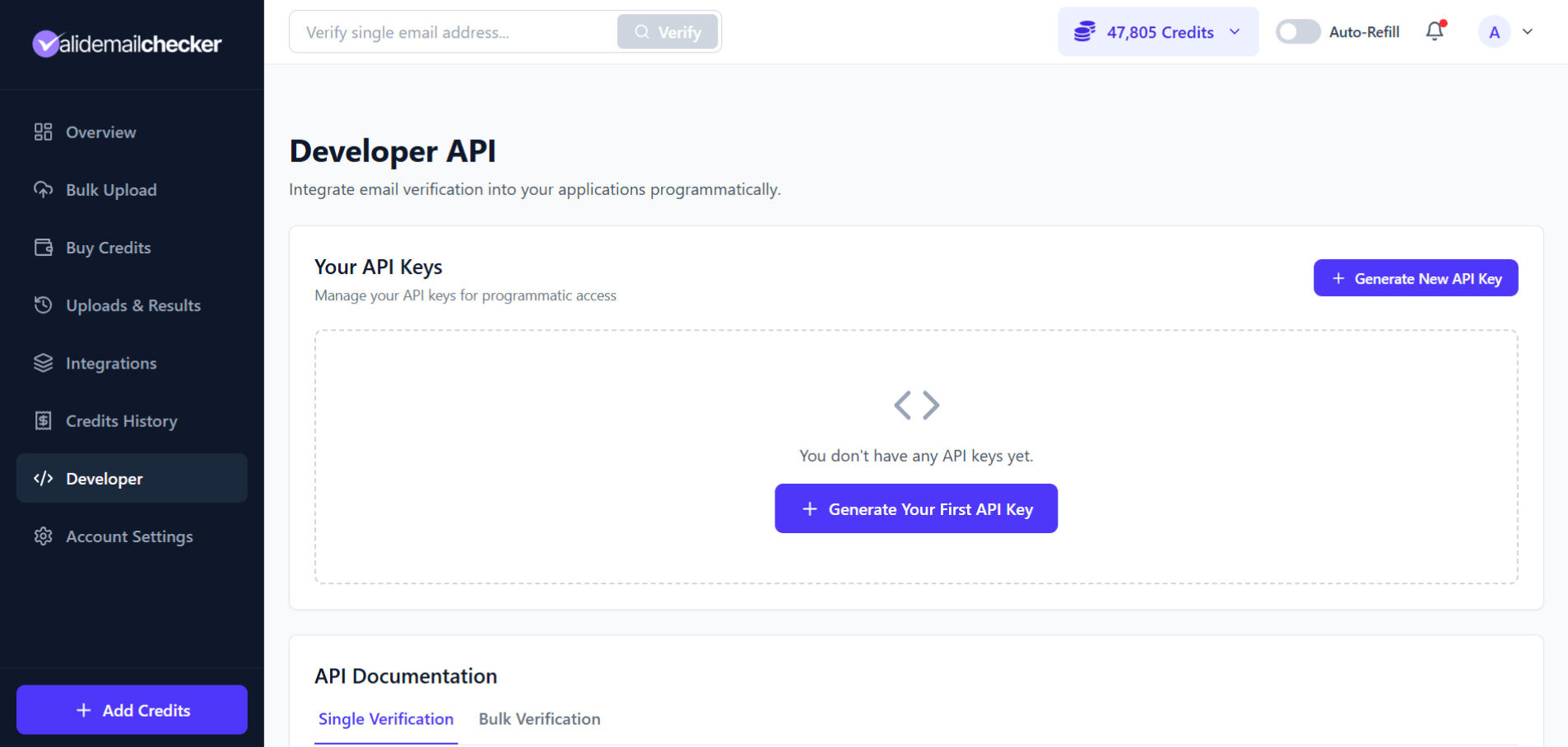
Generating your first key
Step 1 — click Generate
Click Generate New API Key (or Generate Your First API Key if this is your first one).
Step 2 — confirm with the 6-digit code
For security, we send a 6-digit verification code to your registered email address. This confirms you own the account before a key is issued.
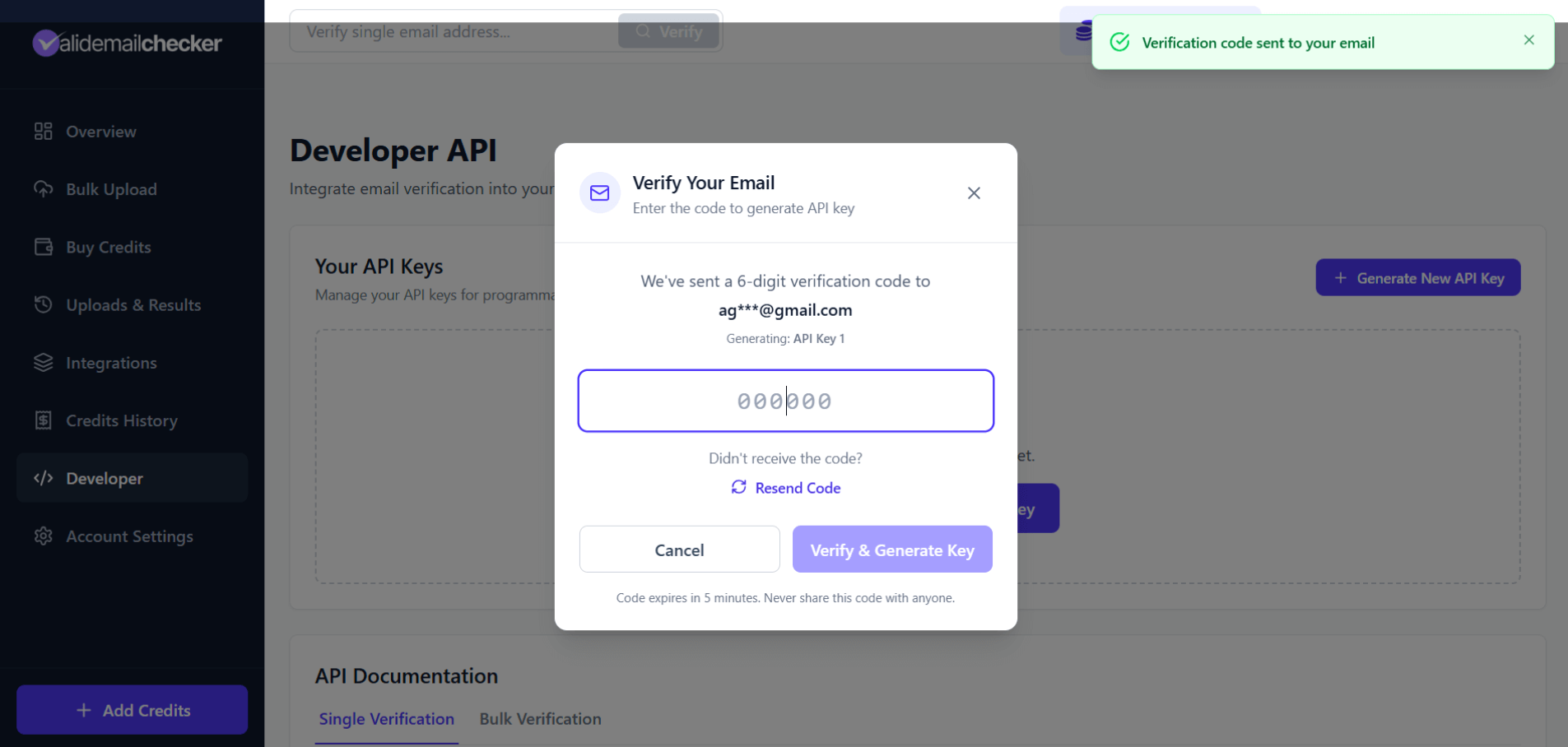
Step 3 — enter the code
- Check your email for the 6-digit code.
- Enter it in the modal.
- Click Verify & Generate Key.
Step 4 — copy the key immediately
Your new key appears on screen. This is the only time the full key is shown.
What the key looks like
Every key has the same shape:
- Starts with the prefix
VEC. - Followed by 32 random characters from a curated alphabet.
- The alphabet excludes confusable characters — no O, I, o, i, l, 0, or 1.
- Total length: 35 characters.
Example shape (not a real key): VECabcdefghjk23mnpqrstuvwxyz23456789.
The API keys table
Once you have at least one key, the Developer page shows them in a table.
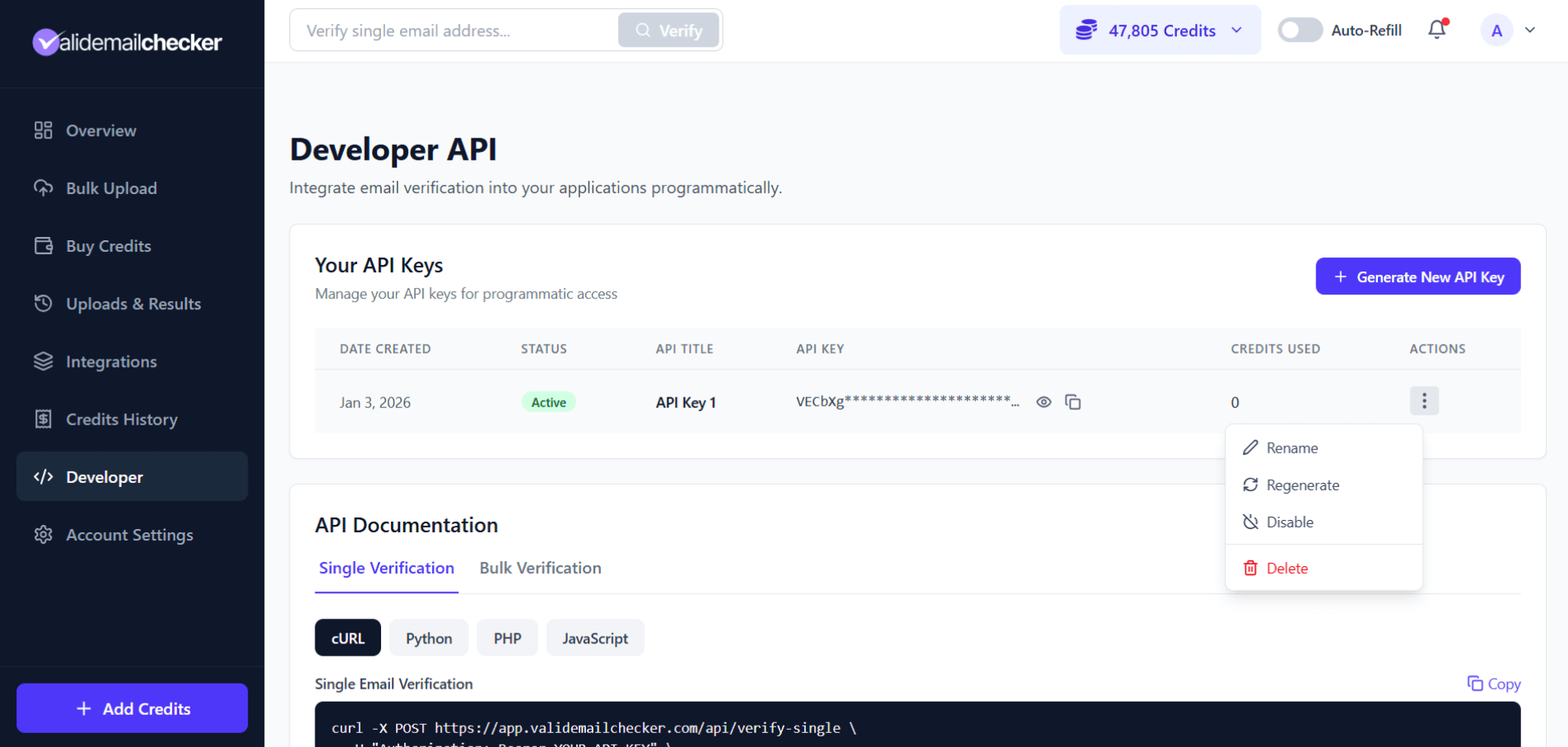
| Column | What it shows |
|---|---|
| Date Created | When the key was generated |
| Status | Active or Disabled |
| API Title | Friendly name for the key (rename any time) |
| API Key | Masked key — click 👁 to reveal a partial preview, 📋 to copy |
| Credits Used | Total credits spent through this specific key |
| Actions | Three-dot menu for rename / regenerate / disable / delete |
Managing keys
Click the three-dot menu on any row to access management actions.
Rename
Give each key a descriptive title so future-you can tell them apart:
Production ServerDevelopment / LocalCRM IntegrationMarketing Automation
Regenerate
Creates a fresh key value while keeping the same title and settings. Use this when:
- A key was accidentally exposed (committed to a repo, posted in chat, screenshotted).
- You're rotating keys on a security schedule.
- A teammate with access has left.
Disable
Temporarily deactivates the key without deleting it. The key:
- Cannot be used for API calls (returns
403 API key is suspended). - Keeps its usage history and metadata.
- Can be re-enabled at any time with no value change.
Useful for pausing an integration, investigating suspicious activity, or temporarily revoking contractor access.
Delete
Permanently removes the key. Cannot be undone. The key immediately stops working and its row disappears from the table.
Storing keys safely
Never commit keys to source control. Always use environment variables.
macOS / Linux (bash or zsh)
# Add to ~/.bashrc or ~/.zshrc
export VEC_API_KEY="VEC..."

# Use in a request
curl -X POST https://app.validemailchecker.com/api/verify-single \
  -H "Authorization: Bearer $VEC_API_KEY" \
  -H "Content-Type: application/json" \
  -d '{"email": "test@example.com"}'
Windows PowerShell
$env:VEC_API_KEY = "VEC..."

$headers = @{
  "Authorization" = "Bearer $env:VEC_API_KEY"
  "Content-Type"  = "application/json"
}
Node.js (.env file)
# .env (add this to .gitignore)
VEC_API_KEY=VEC...require('dotenv').config();
const apiKey = process.env.VEC_API_KEY;Python (.env file)
from dotenv import load_dotenv
import os

load_dotenv()
api_key = os.getenv('VEC_API_KEY')
Troubleshooting
"Generate API Key" button is disabled
You have not made a credit purchase yet. Any PAYG package or any monthly plan unlocks API access — see pricing.
Did not receive the verification code
- Check spam/junk.
- Wait 2–3 minutes — delivery can lag briefly.
- Click Resend Code.
- Confirm your account email is correct on the Account Settings page.
API key is not working
- Confirm the key is Active, not Disabled.
- Make sure you copied the complete 35-character key.
- Confirm the header format:
Authorization: Bearer VEC... - Verify your credit balance — you'll get 402 with zero credits.
Lost the key
- You cannot recover the original — keys are SHA-256 hashed before storage.
- Use Regenerate on the key to get a new value with the same title.
- Update your integrations with the new key.
Common questions
How are keys stored?
SHA-256 hashed. The plain-text key is never written to the database — that is why we can only show it once at creation.
Can I see credit usage per key?
Yes. The Credits Used column shows the total credits each individual key has spent. Useful when you have multiple integrations and want to know which is consuming the most.
What if a key gets compromised?
- Disable or delete the compromised key.
- Generate a new one.
- Update every application that used the old key.
- Review recent activity for any unauthorized usage.
Can I set different rate limits per key?
No — rate limits apply per account, not per key. All keys share the same 60-per-minute and 10,000-per-day envelope. See rate limits and error handling.
Next steps
Related questions
Still stuck? Email support