
Upgrading your subscription: prorated, immediate, no waiting
Need more credits than your current plan allows? Upgrading takes effect immediately. The billing system prorates the difference — you pay only what is owed beyond the value of your unused current-plan credits.
How upgrades work
- Immediate effect — new plan activates the moment payment clears.
- Prorated billing — pay the difference, not the full new price.
- Fresh allocation — new plan credits replace the current monthly allocation.
- Billing cycle resets — your next renewal date moves 30 days from the upgrade.
Prorated billing, explained
You do not pay the full new-plan price when you upgrade mid-cycle. The system calculates the value of your unused monthly credits and subtracts it from the new plan price.
The formula
Unused credit value = (Current balance / Plan credits) × Plan price
Amount due           = New plan price − Unused credit value
Worked example
Say you're on a 10,300-credit plan at $14/month and want to upgrade to the 51,000-credit plan at $59/month, halfway through your billing cycle:
- Credits used so far: 5,150 (half the allocation).
- Credits remaining: 5,150.
- Unused value: (5,150 / 10,300) × $14 = $7.00
- New plan price: $59.00
- Amount due today: $59.00 − $7.00 = $52.00
You pay $52.00, get a fresh 51,000 credits, and your next billing date moves 30 days out from today.
credit_plans table — see the pricing page for current values.How to upgrade
- Open Buy Credits from the sidebar.
- Select the Monthly Plans tab.
- Pick a plan larger than your current one. The card shows "Upgrade: Pay the difference today" with the prorated amount.
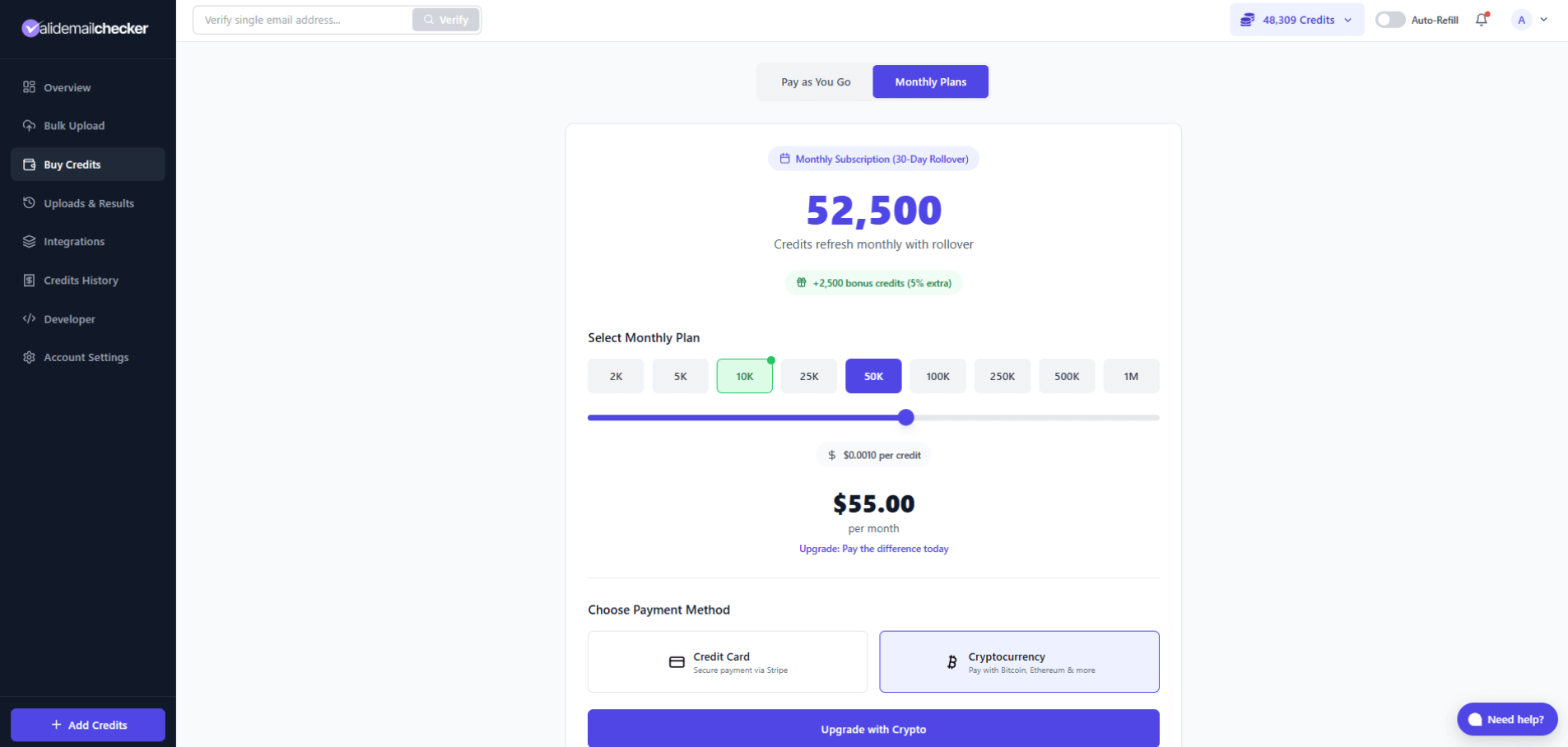
- Pick a payment method (saved card or crypto).
- Click the upgrade button. The Upgrade Preview modal opens.
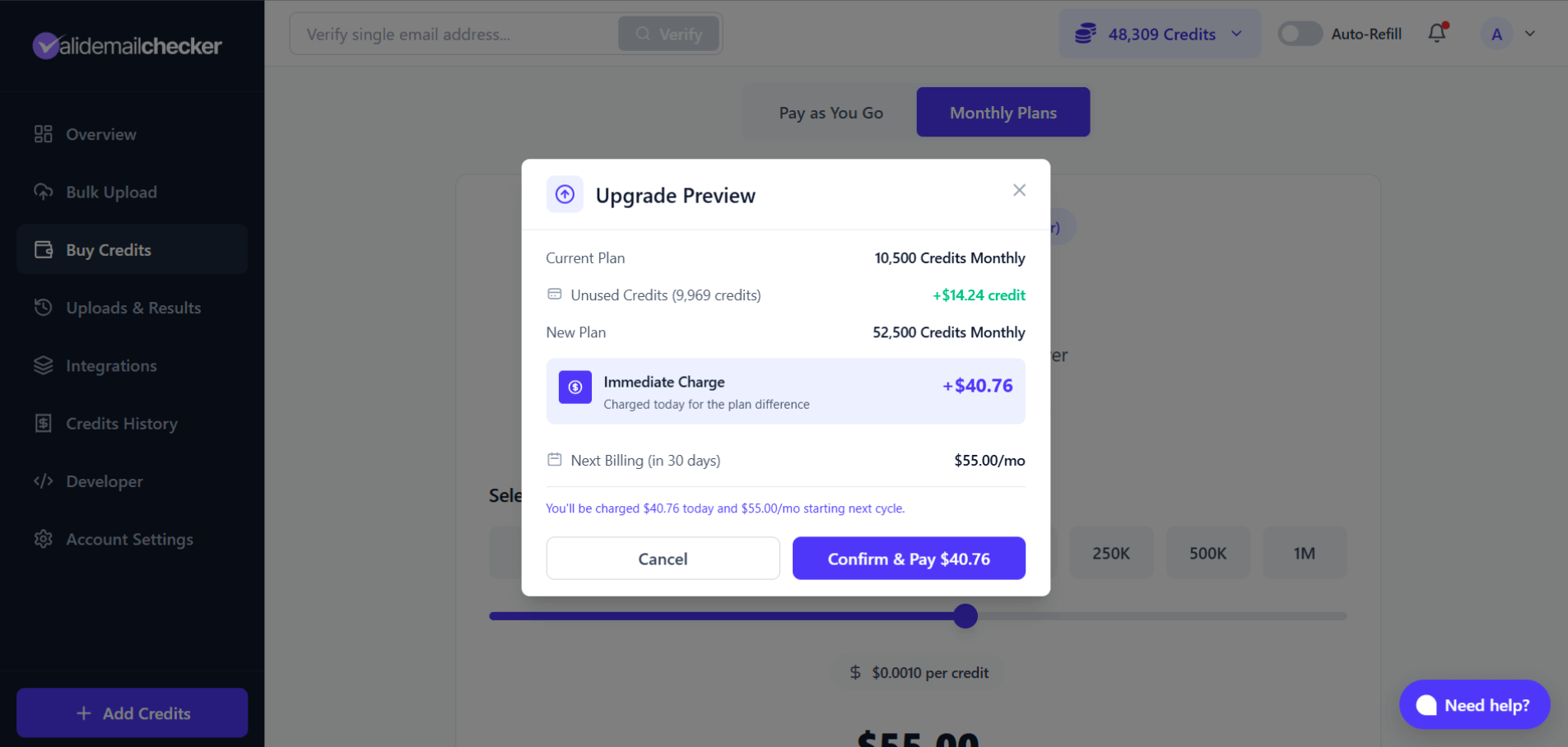
The modal shows your current plan, unused credits and their value, the new plan, the immediate charge, and the next billing amount. Read it back to yourself.
- Click Confirm & Pay.
Credits drop into your account as soon as payment clears.
What happens to your credits
Monthly bucket
Replaced with the new plan's allocation. The dollar value of the unused portion is credited back through the proration calculation — you don't "lose" it, you just stop carrying the credit count and get the dollar value applied to the upgrade instead.
PAYG bucket
Unaffected. PAYG credits are independent of the subscription and stay exactly where they were.
Billing cycle resets
Upgrade resets the billing cycle to 30 days from the upgrade date.
- Original renewal: Jan 15
- You upgrade: Jan 5
- New renewal: Feb 4 (30 days from the upgrade)
This gives you a full 30 days to use the new, larger allocation.
Payment methods for upgrades
- Credit/debit card via Stripe — fastest, especially with a saved card.
- Cryptocurrency — Bitcoin, Ethereum, USDT, USDC, and more. Note that the on-chain confirmation adds a few minutes before the upgrade completes.
Upgrading from a cancelled subscription
If you cancelled but are still in the grace period, upgrading reactivates the subscription and moves you to the new larger plan in one step. The cancellation flag clears automatically.
Upgrading with a pending downgrade
If a downgrade was scheduled for the next renewal, upgrading cancels that scheduled downgrade and applies the upgrade immediately. The downgrade banner disappears.
Tips
Time it right
Upgrade early in your billing cycle to maximize the proration credit. Upgrade late and you have less unused credit value to apply — though you also used what you paid for, so it's not bad either way.
Right-size the upgrade
If you've blown through your allocation halfway through every cycle, jump up two tiers rather than one — it spares you another upgrade in a month.
Check your usage first
Open Account Settings → Billing & Payments → Credit Usage to see your typical monthly usage before choosing a new tier. Pick something that covers actual usage with a 20–30% buffer.
Common questions
Do I lose my unused credits?
No. The dollar value of unused monthly credits is calculated and subtracted from the upgrade price. You get credit for what you didn't use.
When do I get the new credits?
Immediately after payment clears. No waiting period.
What if I upgrade multiple times in one month?
The system has guardrails against billing-cycle manipulation. If you upgrade multiple times within 25 days, your billing cycle may be preserved rather than reset every time.
Can I upgrade with crypto?
Yes. Pick Cryptocurrency at payment selection. The on-chain confirmation takes a few minutes, then the upgrade completes.
What about PAYG credits?
Untouched. PAYG credits are separate from your subscription and stay where they are.
Can I change my mind after upgrading?
You can downgrade, but the downgrade takes effect at the next renewal. There are no refunds for the prorated upgrade amount.
Quick reference
| Aspect | What happens |
|---|---|
| When it takes effect | Immediately |
| Payment | Prorated — pay the difference |
| Current Monthly credits | Value credited toward the upgrade |
| New Monthly credits | Full new allocation immediately |
| Billing cycle | Resets to 30 days from upgrade |
| PAYG credits | Unaffected |
| Pending downgrade | Cancelled |
| Cancelled subscription | Reactivated |
Next steps
Related questions
Still stuck? Email support