
How to verify a single email address from your dashboard
Need to check just one email? You do not have to upload a file. The dashboard has a single-verification bar at the top of every page.
Type an address, click verify, and you have a detailed result in a few seconds. This page walks through it.
When single verification is the right tool
- Quick checks. "Is this email real before I reply?"
- Lead qualification. Verify a prospect before adding them to the CRM.
- Form submissions. Someone just signed up — is the address legitimate?
- Bounce investigation. "Why did this one address bounce? Let me look."
- Testing. Verify your own address to see how results render.
If you have more than a handful of addresses, bulk verification is faster and cheaper to manage. For one-offs, single is the right path.
How to verify a single email
Step 1 — find the verification bar
After you log in, the search bar at the top of every page reads Verify single email address…. It is there on every screen, so you never have to navigate elsewhere to check one address.
Step 2 — paste or type the address
Click the bar and paste or type the email you want to verify. Watch for stray leading or trailing spaces — they are a common source of false errors.
Step 3 — click Verify
Hit the Verify button or press Enter. The check runs immediately; results usually arrive in 2–5 seconds.
Step 4 — read the results popup
A modal opens with the verification result. The header is color-coded by status, and the body lists every detail.
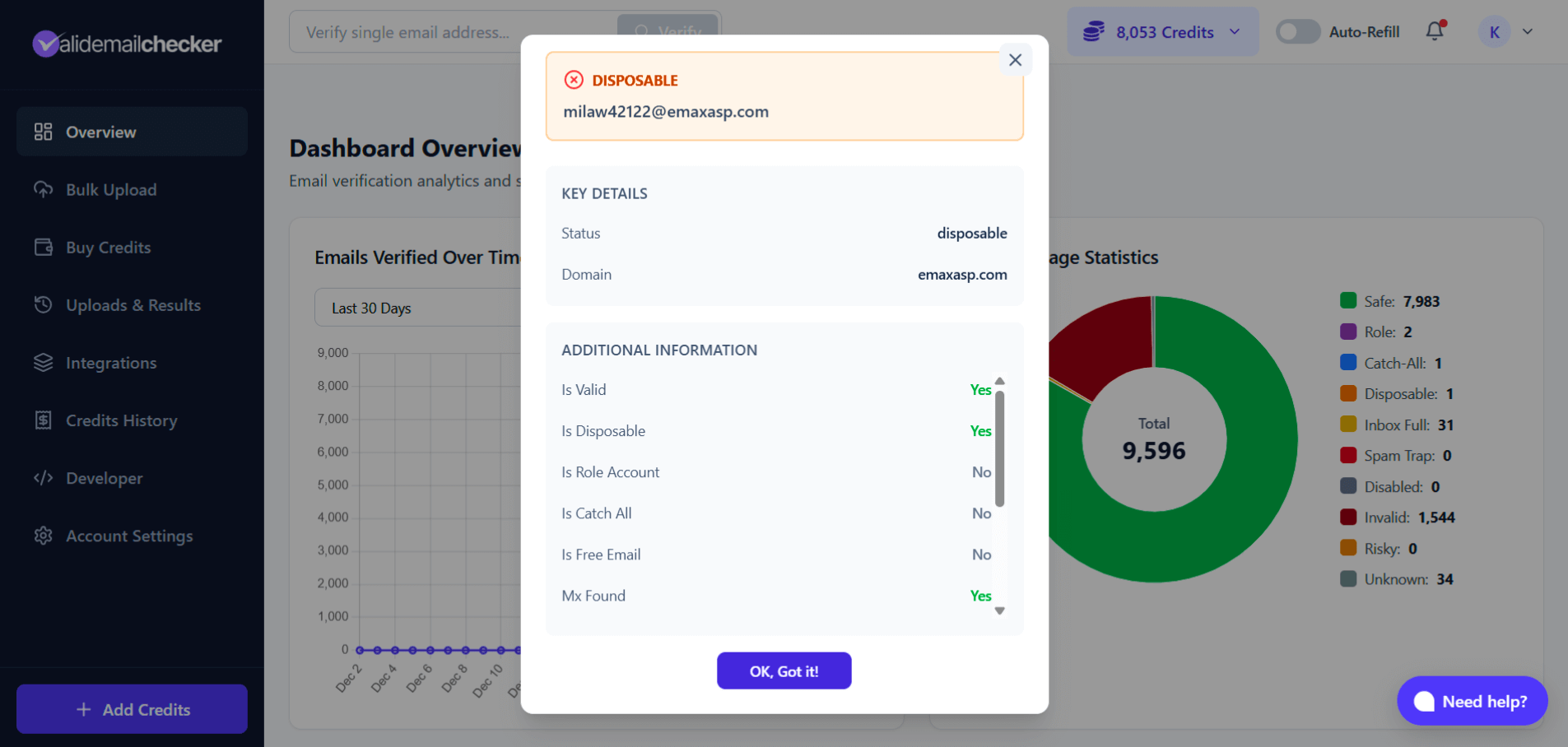
Reading the result
The top of the modal
Status and domain sit at the top, with a color-coded header that gives you a glance assessment:
- Green — Safe (send confidently)
- Indigo — Catch-All (proceed with care)
- Yellow — Inbox Full (retry later)
- Orange — Disposable, Risky (do not send)
- Red — Invalid, Spam Trap (never send)
- Gray — Disabled, Unknown
The detail rows
| Field | What it means |
|---|---|
| Is Valid | Does the mailbox exist? |
| Is Disposable | Throwaway/temporary email service? |
| Is Role Account | Team address (info@, support@)? |
| Is Catch All | Server accepts mail to any local-part? |
| Is Free Email | Gmail / Yahoo / Outlook / iCloud / etc.? |
| MX Found | Domain has mail-server records? |
| Risk Score | How risky the address is to send to (0 = safe, 100 = high risk) |
| Deliverability | High, Medium, or Low chance of arriving |
| Credits Used | How many credits this check cost (always 1) |
| Verified At | Timestamp of the check |
| Reason | Brief plain-text explanation of the result |
Risk Score: lower is better
| Risk Score | Meaning |
|---|---|
| 0–10 | Very safe — send confidently |
| 10–30 | Safe — go ahead |
| 30–70 | Moderate risk — send with care |
| 70–100 | High risk — probably should not send |
Common use cases
"Is this lead real?"
A form submission lands from john.smith.12345@gmail.com. Before your sales team reaches out:
- Paste the email into the verification bar.
- Click Verify.
- If status is Safe → real person, proceed.
- If status is Disposable → throwaway address. Probably not a serious lead.
"Why did my email bounce?"
An email to contact@some-company.com bounced. Verify it.
- If Invalid → the address does not exist. They might have given you the wrong contact.
- If Catch-All → the server accepts everything, so a bounce is unusual. Probably content, IP reputation, or a block on your end.
- If Disabled → the account was deactivated. Common with employees who left the company.
"Should I trust this signup?"
Someone registered with temp123@guerrillamail.org. Verify it. If it returns Disposable, they used a throwaway. Decide whether you want users with fake addresses in your system.
Cost
1 credit per verification. Same rate as bulk — no premium for the convenience. If the result is Unknown, the credit is auto-refunded.
Single vs. bulk: which to use
| Scenario | Best path |
|---|---|
| Checking 1–5 emails | Single |
| Verifying a new lead before calling | Single |
| Testing the service | Single |
| Cleaning a list of 50+ addresses | Bulk |
| Regular list maintenance | Bulk |
| Importing contacts to a CRM | Bulk |
Rule of thumb: more than ~10 addresses, just upload a file.
For developers: verify via the API
Need to verify addresses programmatically? The API lets you check single emails in real time — ideal for form validation, lead-enrichment workflows, CRM integrations, and custom apps.
See the API single-email verification guide for the endpoint, request shape, and response schema.
Quick recap
| What | Details |
|---|---|
| Where | Verification bar at the top of every dashboard page |
| How | Type email → Click Verify → Read popup |
| Speed | 2–5 seconds typical |
| Cost | 1 credit per check (Unknown auto-refunded) |
| Output | Status, risk score, deliverability, detailed flags |
Next steps
Related questions
Still stuck? Email support