
How do I disconnect or revoke the Klaviyo integration?
Removing the Klaviyo integration from Valid Email Checker takes one step for most people, or two for full hygiene. Step one: delete the connection on our side (this deletes our stored OAuth tokens, cutting VEC off from Klaviyo). Step two, optional: revoke Valid Email Checker's access from inside Klaviyo so the authorization is cleared on both ends.
Step 1: delete the connection in VEC
- Sign into VEC and open Integrations.
- Find the Klaviyo row in Connected Integrations.
- Click the three-dot row menu and pick Delete.
- Confirm in the modal.
- The Klaviyo entry vanishes from the table immediately.
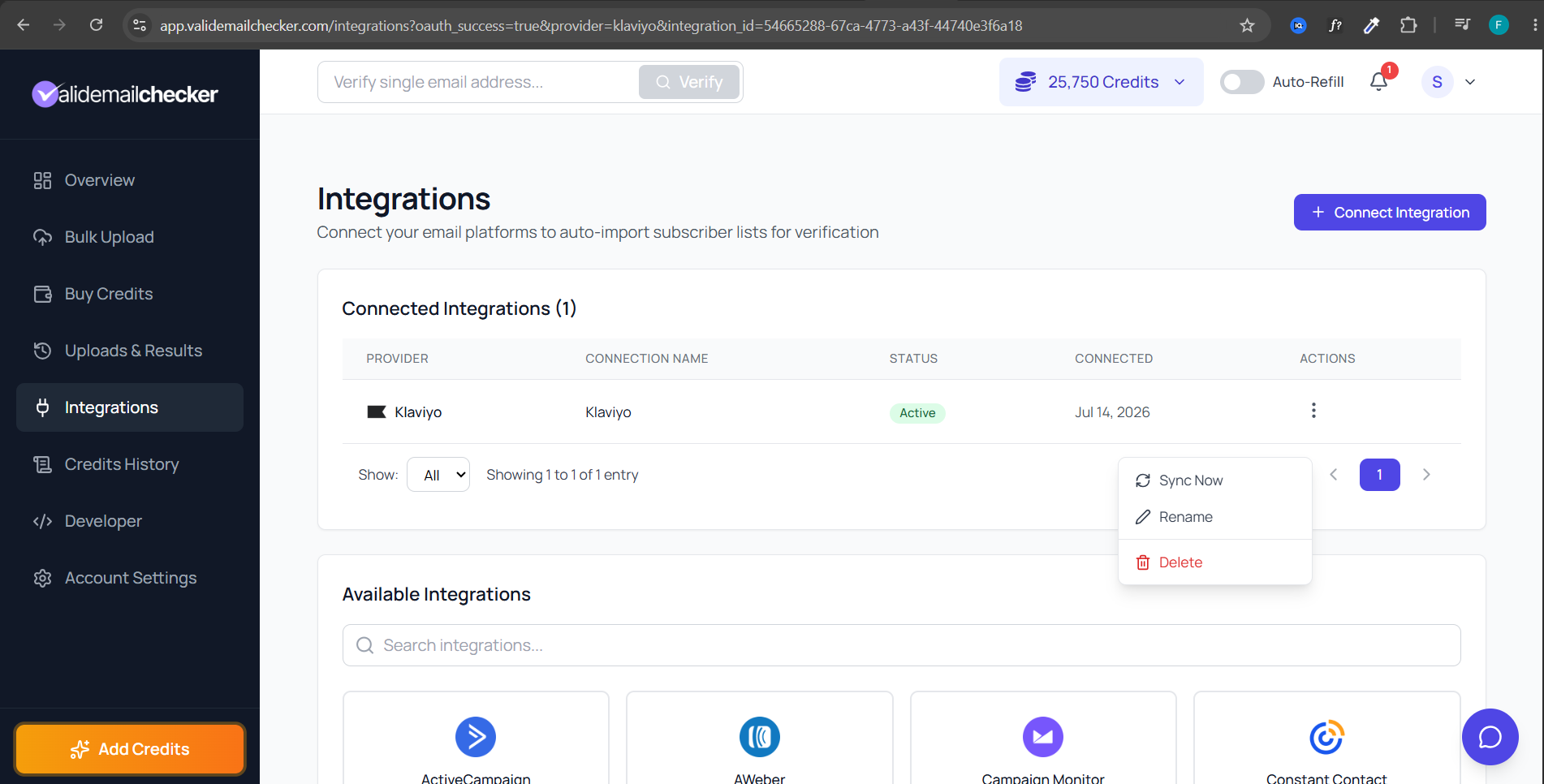
Deleting the connection also clears the sync history attached to it. Past verification jobs remain in your Uploads & Results page as standalone records.
Step 2 (optional): revoke access inside Klaviyo
- Sign into Klaviyo.
- Click Integrations in the left-hand side menu.
- Scroll to My apps and find Valid Email Checker (listed under the "Email service provider" category).
- Click the three-dot menu (⋮) at the end of its row and choose Remove integration.
- Klaviyo immediately revokes the authorization and invalidates the OAuth tokens for the app.
No API keys involved
Valid Email Checker connects to Klaviyo with OAuth, not an API key — so there's no key to find or delete. Access is granted (and revoked) as an authorized app in your Klaviyo account. Setup specifics live in the Klaviyo integration guide.
What happens to running verifications?
A verification mid-import keeps running with the cached credentials. New sync attempts fail immediately until you reconnect. To resume, walk through the connect flow in the Klaviyo integration guide.
Reconnecting later
Reconnect by going to Integrations → Connect Integration → Klaviyo, clicking Connect with Klaviyo, and approving access again. The new connection is unrelated to the deleted one. If you previously named it something distinctive (helpful in multi-account workflows), reuse the name for team-facing consistency.
Team-member-created connections
Connections created by team members show a Users badge in the Provider column. Owners can delete any connection; team members can only delete connections they themselves created.
Related questions
Still stuck? Email support