How to Stop Spam Emails: Sender and Receiver Fixes
 Mara ChenJuly 11, 2026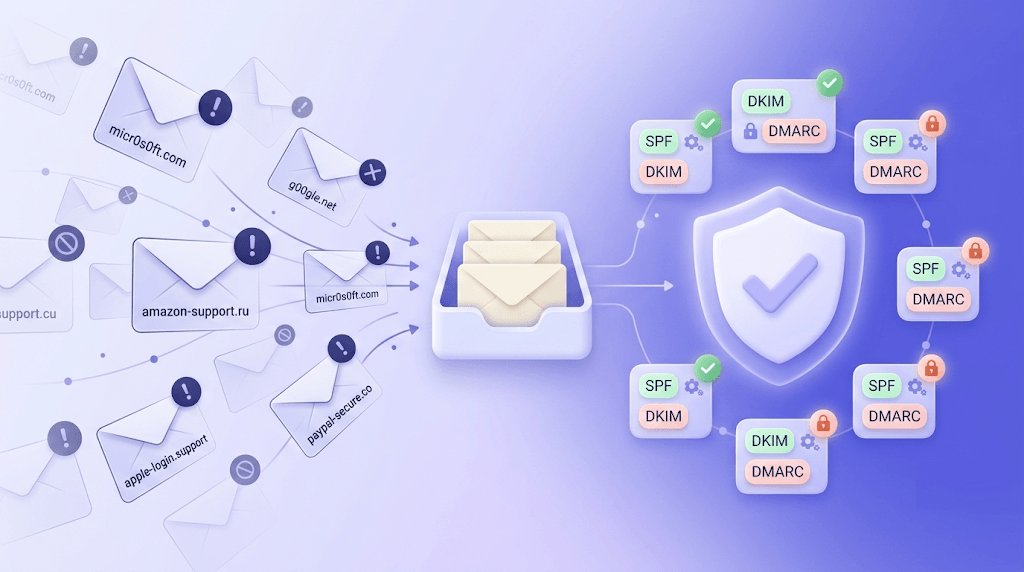
Your spam folder has 847 unread messages. You blocked the last sender. A new one showed up an hour later with a slightly different domain name. Sound familiar?
Spam isn't a single problem — it's two. There's the spam you receive, which is an inbox-management challenge. And there's the spam your own domain accidentally enables when your authentication records are broken or your list is dirty. Most guides pick one side and ignore the other. This one covers both, because the fastest way to fix your inbox and protect your sending reputation is to understand how they're connected.
By the end you'll know exactly why blocking individual senders never works, which three technical records actually stop spoofing, and what a bounce rate above 2% is doing to your domain right now.
What spam actually is (and why blocking one sender never works)
Spam, at its core, is unsolicited bulk email. That definition covers everything from a marketing newsletter you never signed up for to a phishing campaign designed to steal your banking credentials. The word gets used for both, which is part of why the fixes feel so inconsistent — what works against annoying marketing doesn't work against active malware delivery.
Here's why blocking a single sender address accomplishes almost nothing: professional spammers rotate sending domains and IP addresses constantly. A single spam operation might cycle through hundreds of domains per week, burning each one after a few thousand sends before inbox providers start filtering it. When you block deals@amazing-savings-now.com, the next message arrives from offers@incredible-deals-today.net. Whack-a-mole with an infinite supply of moles.
Volume spikes happen for a few specific reasons. Your address may have been scraped from a public webpage, sold by a data broker, or exposed in a breach. Have I Been Pwned (haveibeenpwned.com) will show you which breaches included your address — worth checking if your spam volume jumped suddenly after a particular year.
The unsubscribe trap
Clicking 'unsubscribe' from a sender you don't recognize can make things worse. Legitimate senders are legally required to honor unsubscribe requests under CAN-SPAM. But phishing campaigns and gray-area spammers use unsubscribe links specifically to confirm your address is live and monitored — which makes it more valuable to sell. If you didn't knowingly sign up for something, don't click its unsubscribe link. Mark it as spam and move on.
The fastest fixes: built-in filters you probably haven't maxed out
Every major email client ships with spam filtering that most users leave on default settings. Default is almost never optimal.
Gmail's 'Report spam' button does more than move one message. It trains the underlying Bayesian classifier on your specific inbox — the more you use it, the more personalized your filter becomes. For surgical control, Gmail's filter rules (Settings → Filters and Blocked Addresses → Create new filter) let you block an entire domain with a wildcard: enter *@spammy-domain.com in the From field and Gmail will catch every future message from that domain regardless of the local part.
Outlook and Outlook.com have Junk Email filter levels most users never touch. The default is Low, which catches obvious spam but passes a lot of gray-area mail. Bumping it to High catches significantly more — at the cost of more false positives, which is why checking your Junk folder weekly matters. A legitimate invoice from a new vendor will occasionally land there.
Apple Mail distinguishes between 'Move to Junk' and 'Block Contact.' Move to Junk trains the filter. Block Contact hides future messages from that address — but the messages still arrive and sit in the account. If you're on iPhone and wondering why spam keeps appearing even after you've blocked someone, that's why. Server-side filtering (through your ESP's settings) is the only option that actually stops delivery.
One filter rule that circulates in productivity communities: route any message containing the word 'unsubscribe' to the spam folder automatically. It's blunt but effective — nearly every bulk email contains that word. The catch is that newsletters you actually want will go there too, so you'd need a whitelist of senders you want to keep. For high-spam inboxes, the trade-off is often worth it.
Stopping spam at the source: how your address ends up on lists
Filters treat the symptom. Understanding how your address ends up on spam lists is the only way to treat the cause.
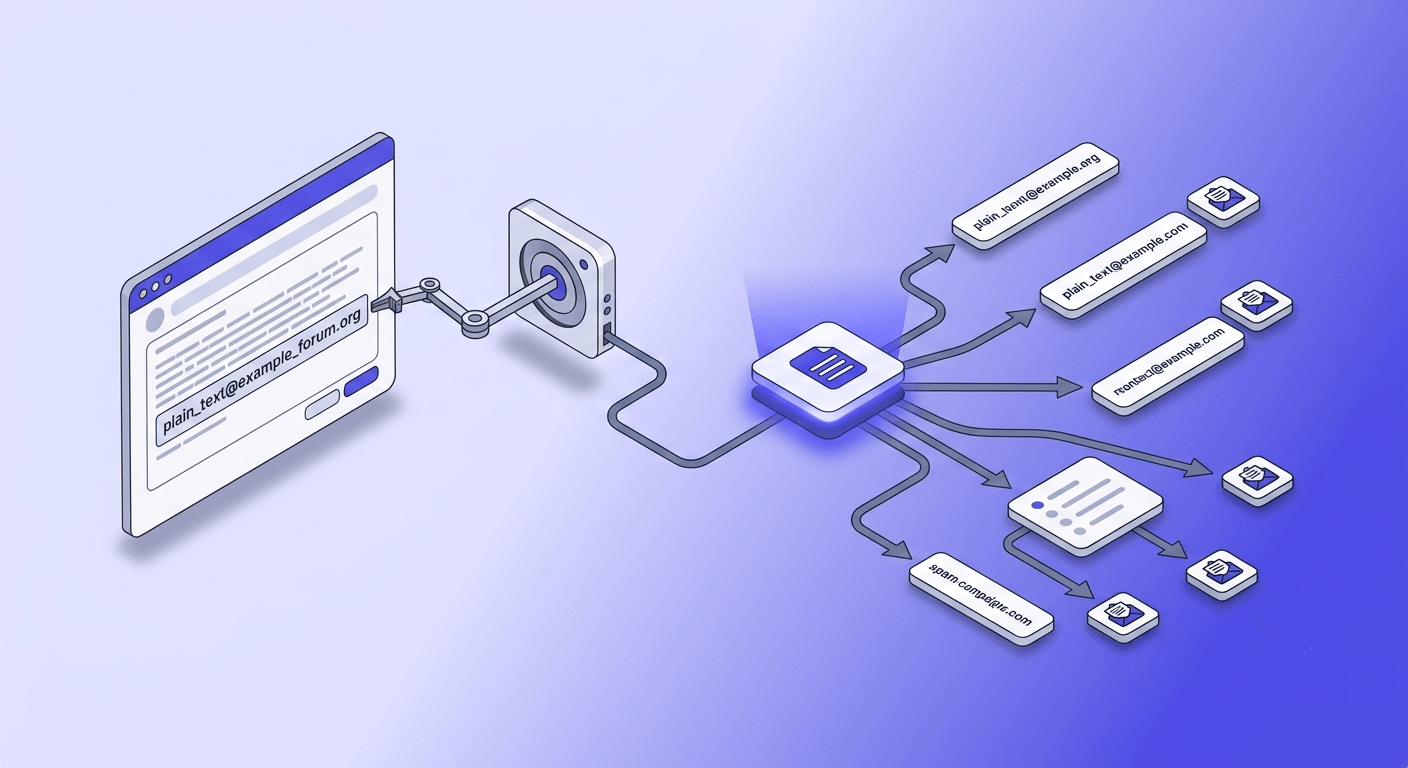
Web-form harvesting is the oldest method. Bots crawl public pages and collect any plaintext email address they find. If your address appears anywhere on a public website — a contact page, a forum post, a comment section — it will be scraped eventually. HTML obfuscation slows bots down; it doesn't stop them.
Pre-checked opt-in boxes on signup forms are a significant source of legitimate-looking spam. You register for a service, miss the pre-checked 'share with our partners' checkbox, and your address flows to a dozen third parties you've never heard of. CISA has specifically called this pattern out in its email hygiene guidance.
Data breaches are the other major vector. When a company you've signed up with gets breached, your address goes into the wild. It gets sold, re-sold, and eventually ends up on spam lists years after the original breach. The breach you experienced in 2019 may be generating spam in your inbox today.
The single biggest preventable source of long-term spam: using your primary address for one-time signups. Every service you register for — a contest entry, a free tool, a one-time download — is a potential future spam source. Some services are careful with your data. Many aren't. The only way to control this is to not give them your real address in the first place.
Address hygiene: the habits that cut incoming spam by half
The most effective long-term spam reduction strategy is compartmentalization. One address for people you actually know. One for commerce — purchases, subscriptions, services you use regularly. One throwaway for anything else.
Gmail's plus-addressing feature is underused. If your address is yourname@gmail.com, you can sign up for services as yourname+shopname@gmail.com — Gmail delivers it to the same inbox, but now you can trace which service sold or leaked your address. When spam starts arriving at yourname+shopname@gmail.com, you know exactly who to blame. You can then create a filter to auto-delete anything sent to that variant.
Temporary or disposable email addresses go further. Services like these are designed for one-time registrations where you need to receive a confirmation email but never want to hear from the sender again. The caveat: don't use them for services you'll actually need to access later. A disposable address for a password reset email you'll need in six months is a problem waiting to happen.
Here's a useful audit: search your inbox for 'confirm your email' or 'please verify your email address.' Every result is a service that has your address. Some of those services will have been breached, sold, or shut down and had their user database acquired. The list is usually longer than people expect.
App permission audit
Check which apps have permission to read your contacts or email. On iOS: Settings → Privacy → Contacts. On Android: Settings → Apps → Permissions. Apps with contact access can read every email address you've stored — and depending on their privacy policy, may share that data. Revoke anything you don't actively use.
If you're a sender: why your legitimate emails look like spam
This is the half the consumer guides skip entirely. If you send email — marketing, transactional, cold outreach — your own practices can make you look exactly like a spammer to inbox providers, even when every message you send is legitimate.
Hard bounces above 2% are a direct signal to inbox providers that your list is dirty. A hard bounce means the address doesn't exist or the domain doesn't accept mail. One or two is noise. Fifty out of a thousand sends is a pattern that damages your sender reputation score, which affects where every future message from your domain lands — including the ones going to valid addresses. You can read more about the mechanics in our guide on how to reduce email bounce rate below 2%.
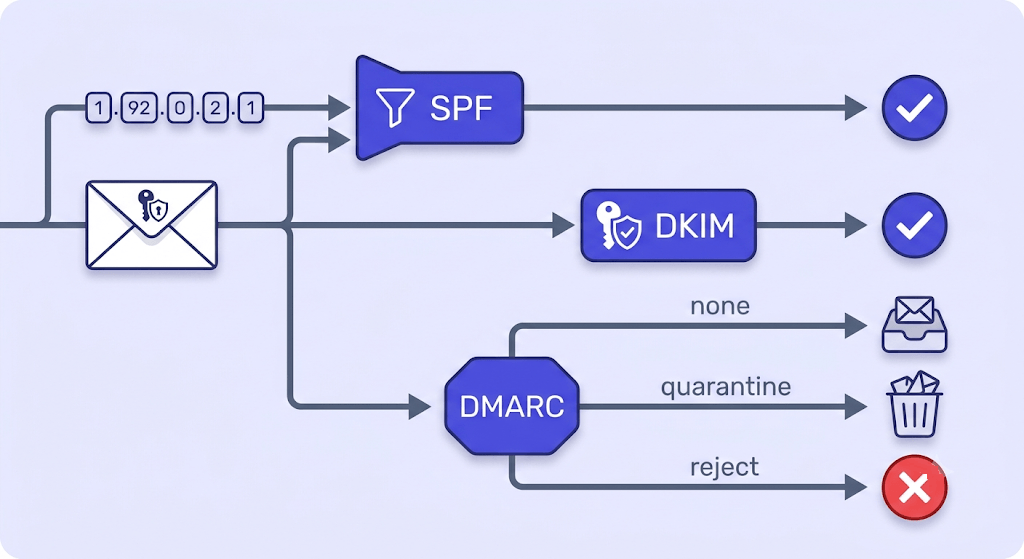
Missing or broken SPF, DKIM, and DMARC records are the most common technical reason Gmail and Outlook route legitimate mail to junk. These three authentication records work together: SPF says which IPs are allowed to send from your domain, DKIM signs the message cryptographically, and DMARC tells receivers what to do when either check fails. Without all three, inbox providers have no way to confirm you are who you say you are. Our pillar guide on how email authentication works together covers the full interaction.
Shared IP reputation is a less obvious problem. Entry-level plans on many ESPs put you on a shared IP address with other senders. If one of those senders starts blasting spam or hitting spamtraps, your deliverability suffers too. Dedicated IPs eliminate this risk — but they require a warm-up period and consistent volume to maintain their own reputation.
The feedback loop is direct: every recipient who marks your message as spam sends a signal to the inbox provider's classifier. That signal feeds into your sender reputation score. Enough of those signals and your domain starts getting filtered globally, not just for individual recipients. Understanding why emails go to spam is worth reading if this is happening to you.
Is this address worth sending to?
Paste any email address and see the full 11-stage verification result in seconds.
Powered by Valid Email Checker — full SMTP handshake, disposable + role detection, no card required.
Platform-specific walkthroughs: Gmail, Outlook, and Apple Mail
Here's exactly where to find the controls that matter on each major platform.
Gmail: create a domain-level filter
Go to Settings (gear icon) → See all settings → Filters and Blocked Addresses → Create new filter. In the From field, enter
*@spammy-domain.comto catch all mail from that domain. Select 'Delete it' or 'Skip Inbox and apply label: Spam.' Gmail's 'Block [sender]' option only blocks the specific address — the filter rule is more durable.Outlook.com: raise the Junk filter level
Go to Settings → Mail → Junk email. Change the filter level from Low to High. Add any senders or domains you want to always receive to the Safe Senders list before changing the level — otherwise legitimate mail may start disappearing. Check your Junk folder weekly for false positives.
Outlook desktop: use the Rules wizard for complex conditions
Home → Rules → Manage Rules & Alerts → New Rule. The Rules wizard lets you build conditions based on subject keywords, sender domain, attachment type, and more. A rule like 'sender domain contains .xyz AND subject contains FREE' is more surgical than any single block.
Apple Mail on iOS: understand the limitation
Settings → Mail → Blocked adds addresses to a block list — but on iOS, this is client-side only. Blocked messages still arrive on the server and sync to other devices. For real filtering, use your email provider's web interface (iCloud.com, Gmail.com, or Outlook.com) to set server-side rules.
Google Workspace admins: quarantine at the organizational level
Admin Console → Apps → Google Workspace → Gmail → Spam, Phishing, and Malware. You can set quarantine policies, configure inbound gateways, and manage content compliance rules that apply to every user in the organization — more effective than asking each user to manage their own filters.
When to report spam (and who actually reads those reports)
Reporting spam feels like shouting into a void. It's not — but the mechanism matters.
Marking a message as spam in Gmail or Outlook is the single most useful action you can take. Both providers feed those signals directly into their classifier training data. Your individual report doesn't stop a specific sender, but it contributes to the collective model that eventually does. The more people mark the same sender, the faster the filter catches up.
For reporting outside your inbox provider: the FTC accepts spam reports at spam@uce.gov. Those reports feed the FTC's enforcement database, which has led to real legal action against large-scale spammers — though that process plays out over months or years, not hours. For phishing specifically, reportphishing@apwg.org (the Anti-Phishing Working Group) is the right destination. Your email provider almost certainly has its own phishing report option as well.
If a specific spam campaign is persistent enough that you want to report it to the sender's ISP, look up the sending IP's abuse contact via WHOIS. Most ISPs publish an abuse@ address. This is worth doing for targeted harassment or a spam campaign that appears to originate from a single source — not for generic bulk spam, where the sending IP changes constantly.
What not to expect
Individual reports rarely stop a specific sender directly. The value is aggregate — your report combines with thousands of others to improve the collective filter. Think of it as a contribution to a shared immune system, not a direct response.
Protecting your domain from being used to send spam
Domain spoofing is when a spammer sends email that appears to come from your domain without your knowledge or consent. You find out when the bounce messages and angry replies start arriving. By then, your domain's reputation may already be damaged.
The three records that actually stop this are SPF, DKIM, and DMARC. They're defined in RFC 7208, RFC 6376, and RFC 7489 respectively — but here's the practical summary:
- SPF is a DNS TXT record that lists every IP address allowed to send mail as your domain. Receivers check it on every inbound message. If the sending IP isn't on the list, the check fails.
- DKIM adds a cryptographic signature to outgoing messages. The receiver verifies the signature against a public key in your DNS. If the message was tampered with in transit, the signature fails.
- DMARC is the policy layer that tells receivers what to do when SPF or DKIM fail:
p=none(do nothing, just report),p=quarantine(send to junk), orp=reject(refuse delivery entirely).
A p=none DMARC policy is better than no DMARC at all — it generates reports that show you who's sending as your domain. But it doesn't stop spoofing. `p=reject` is the only DMARC policy that actually prevents spoofed messages from reaching inboxes. Moving from p=none to p=reject is the single highest-leverage action a domain owner can take against spoofing.
Checking your current record health takes under two minutes. Run your domain through the SPF Record Checker and DMARC Record Checker — both are free. You'll see exactly what's published, whether it's syntactically valid, and whether your DMARC policy is actually enforcing anything.
Free tool · no signup
Check your SPF record in seconds
See exactly what's published for your domain and whether it's configured correctly.
If your SPF record is missing, broken, or over the 10-lookup limit, our SPF record generator guide walks through building a correct one from scratch. The lookup limit is the most common mistake — exceeding it causes intermittent authentication failures that are genuinely confusing to debug.
The sender-side fix: verify your list before it damages your domain
Authentication records tell inbox providers your domain is legitimate. A verified list tells them your sending habits are legitimate. You need both — and most senders who end up in spam folders are missing the second one.
When you send to invalid addresses, you generate hard bounces. When you send to spamtraps — addresses specifically seeded to catch bad senders — you signal to the receiving network that your list was acquired sloppily. When you send to role addresses like info@ or admin@ that nobody monitors, your engagement metrics tank and inbox providers notice. All of this feeds your sender reputation, which determines inbox placement for every future send.
The fix is verification before sending. Valid Email Checker runs every address through an 11-stage verification engine — syntax, MX records, SMTP handshake, mailbox existence, catch-all detection, disposable detection, spamtrap detection, and more. The result is one of ten statuses: safe, risky, invalid, unknown, catch-all, disposable, role, spamtrap, disabled, or inbox-full. Each one tells you something specific about what to do with that address.
One thing worth knowing: if a verification returns unknown — meaning both verification layers couldn't reach a definitive answer — the credit is automatically refunded. No support ticket, no waiting. Most verifiers charge you for unknown results regardless. We don't, because an inconclusive result isn't useful to you. The details are in our refunds and credit returns guide.
Free tool · no signup
Verify an email address free
See the full 11-stage result — safe, risky, invalid, spamtrap, and more. 150 free credits, no card required.
If you use Mailchimp, Klaviyo, SendGrid, HubSpot, or any of the other 13 ESPs we connect to, you can sync your audience directly — the list goes in, the verified version comes back to the same audience. No CSV exports, no manual re-import.
Spam is a list problem as much as it's a filter problem. The senders who stay out of junk folders consistently are the ones who treat list hygiene as infrastructure, not an occasional cleanup task.
Frequently asked questions
Why do I keep getting spam even after blocking the sender?
deals@spam-domain.com stops that specific address — it doesn't stop the next message from offers@different-spam-domain.net. The effective approach is domain-level filter rules (available in Gmail and Outlook) combined with training your spam filter by consistently marking unwanted mail rather than just deleting it.Does unsubscribing from spam make it worse?
How do spammers get my email address in the first place?
What's the difference between blocking an email and filtering it?
How do I stop spam emails in Gmail permanently?
Why are my legitimate emails going to spam?
How do I know if my domain is being used to send spam?
Should I report spam emails, and does it actually do anything?
Spam is a two-sided problem, and the fix is two-sided. For your inbox: max out your filters, compartmentalize your addresses, and stop confirming your address is live by clicking unsubscribe on senders you don't recognize. For your domain: publish SPF, DKIM, and a DMARC policy at p=reject — then verify your list so your bounce rate never gives inbox providers a reason to distrust you. The tools to do the second half are below.
Try Valid Email Checker free
Verify any email in under a second
Get 150 free verifications. No credit card. Auto-refund on every Unknown result — the only verifier we know that does this.
- 150 free credits when you sign up
- Auto-refund every Unknown verification (we're the only ones that do)
- 11-stage flow catches what 1-step checkers miss
- Drop-in integrations for Mailchimp, HubSpot, SendGrid, 14 more
Written by
Mara ChenMara covers deliverability from the receiving end — the filters, reputation signals, and quiet rejections that decide whether you reach the inbox or the spam folder. She cares less about clever subject lines than the unglamorous fundamentals that actually move placement: clean lists, consistent sending, and a sender reputation you don't have to rebuild every quarter. Expect practical, no-hype advice grounded in how mailbox providers really behave.