SPF Record Generator: Build, Verify, and Avoid the 10-Lookup Trap
 Devon ParkJune 12, 2026
Most domains get spoofed not because attackers are sophisticated — but because the domain owner never published an SPF record. Without one, any server on the internet can claim to send mail on your behalf, and most inbox providers will either junk it or deliver it to your recipients looking like it came from you.
In the next few minutes you'll be able to generate a valid SPF record, publish it correctly, and verify it actually works. The generator is the easy part. The tricky part is staying under the 10-lookup limit and making sure your SPF pass actually satisfies DMARC — two things most generator tools mention and then immediately ignore.
That second part is where most SPF records quietly fail months after they were published.
What an SPF record actually does (before you generate one)
An SPF record is a DNS TXT entry that tells receiving mail servers which IP addresses are authorized to send mail for your domain. When a message arrives claiming to be from you, the receiving server looks up your domain's SPF record and checks whether the sending IP is on the list. If it isn't, the server can reject the message, mark it as spam, or flag it — depending on how you've configured the qualifier at the end of your record.
Every SPF record begins with v=spf1. That prefix tells the receiving server this TXT record is an SPF policy (not a DKIM key or a DMARC tag). Without it, the record is ignored entirely.
SPF alone, though, is not a complete authentication story. It authenticates the sending IP — the server that delivered the message. It says nothing about the message content, and it doesn't directly protect the From: address your recipients see. That's where DKIM and DMARC come in. For a full picture of how the three fit together, see Email Deliverability in 2026: From Rules to Enforcement.
The qualifier at the end of your record controls what happens when a sender isn't on your authorized list. ~all is a soft fail — the message is accepted but marked as suspicious. -all is a hard fail — the message should be rejected outright. Most deliverability practitioners recommend -all for production domains once you're confident your record is complete. ~all is useful during testing when you're not certain you've listed every legitimate sender yet. Publishing ~all permanently is a common mistake: it signals that you're not sure who's allowed to send for you, which erodes the trust the record is supposed to build.
The SPF syntax you'll actually be building
A real SPF record looks like this:
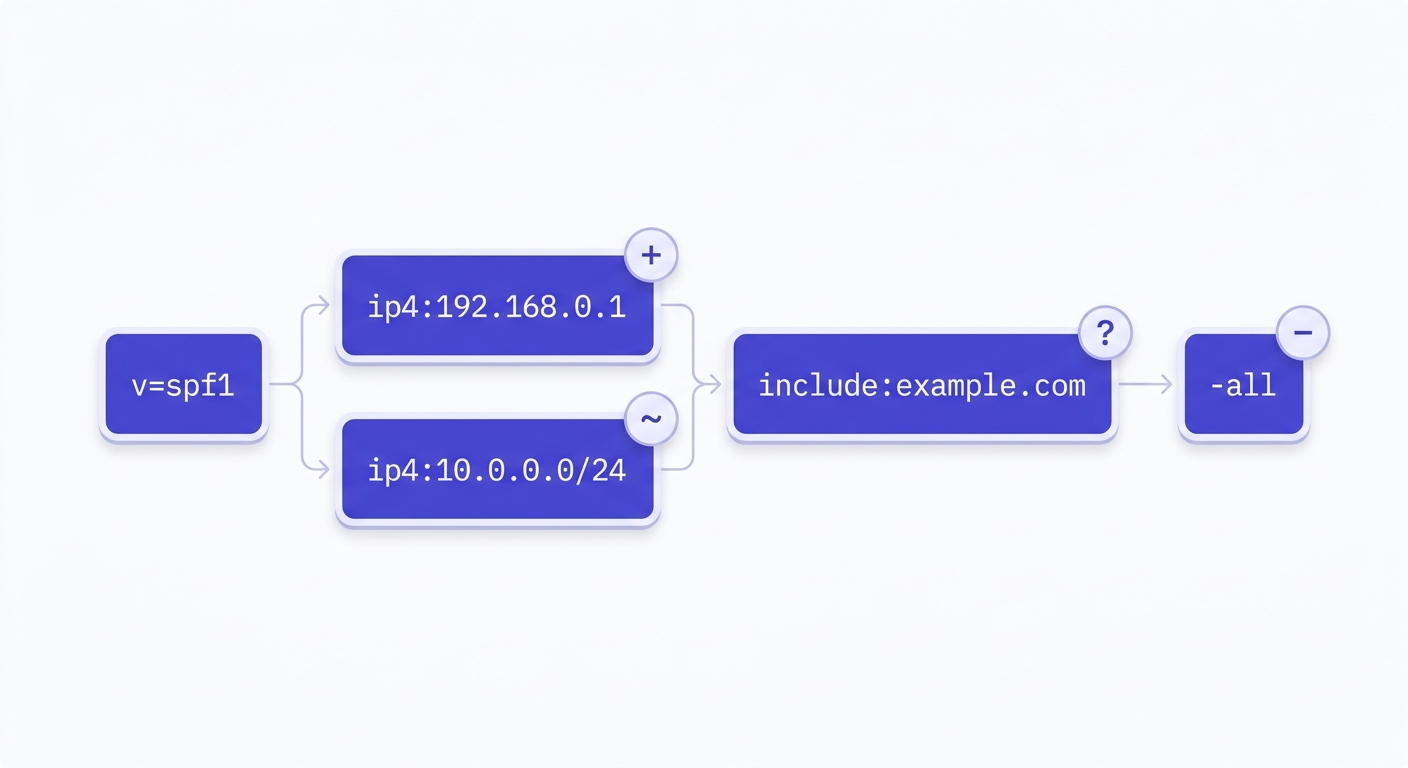
v=spf1 ip4:203.0.113.10 include:_spf.google.com include:servers.mcsv.net -allToken by token: v=spf1 declares the record type. ip4:203.0.113.10 authorizes a specific IPv4 address. include:_spf.google.com tells the receiver to also check Google's own SPF record and treat any IPs listed there as authorized. include:servers.mcsv.net does the same for Mailchimp. -all says: reject anything that didn't match.
The mechanisms you'll use most often:
ip4/ip6— authorize a specific IP address or CIDR range. These are the most efficient mechanisms because they don't trigger additional DNS lookups.include— delegate to another domain's SPF record. Everyincludecosts one DNS lookup.a— authorize the IP(s) in your domain's A record. Costs one lookup.mx— authorize the IP(s) in your domain's MX record. Costs one lookup.exists— advanced; checks whether a domain resolves. Costs one lookup.ptr— deprecated in RFC 7208 and should never appear in a new record. It's slow, unreliable, and most receivers ignore it.
Qualifiers prefix each mechanism and control the result when it matches. + (pass, the default) means the sender is authorized. - (fail) means they're not. ~ (softfail) means probably not but accept anyway. ? (neutral) means no policy — essentially useless in practice.
Order matters for efficiency but not for correctness. Receivers evaluate mechanisms left to right and stop at the first match. Put your most-common senders first — your transactional IP range before your marketing ESP's include — so the majority of your legitimate mail matches early and avoids unnecessary lookups.
The 10-lookup limit — the rule that breaks most SPF records
RFC 7208 caps SPF evaluation at 10 DNS lookups per check. Exceed that limit and the receiver returns a PermError — which most inbox providers treat the same as a fail. Your record exists, it's syntactically valid, and it still breaks every authentication check.
What counts toward the limit: include, a, mx, exists, and ptr. What doesn't: ip4 and ip6. This distinction is the entire reason lookup-limit problems exist — every time you add an ESP via include, you're spending at least one lookup, and that ESP's own SPF record may chain to more includes, each of which spends another.
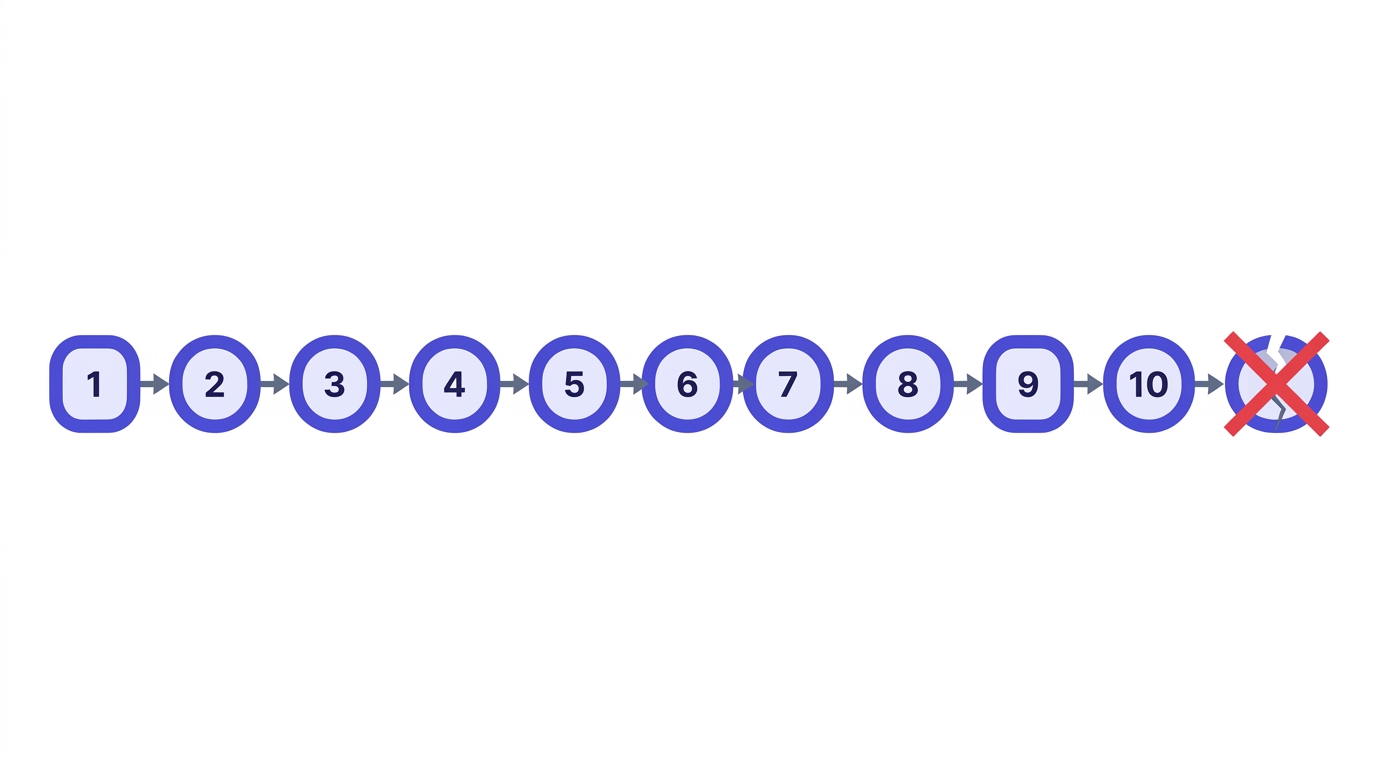
The most common way senders blow past 10 lookups: stacking multiple ESPs. If you're using Mailchimp for marketing, SendGrid for transactional, and HubSpot for CRM sequences, you're already at 3+ includes before you've added your support desk or calendar tool. Each of those ESPs' SPF records may themselves chain to 2–4 more includes. A stack of five SaaS products can easily consume 12–15 lookups.
Audit before you generate
Before you build a new SPF record, check your current lookup count with the SPF Record Checker. Publishing a new record that still exceeds 10 lookups just replaces one broken record with another.
The standard fix is flattening: replace include:_spf.sendgrid.net with the actual IP ranges SendGrid publishes, converting lookup-heavy includes into zero-cost ip4 entries. The trade-off is maintenance. When SendGrid rotates their sending IPs — which they do periodically — your flattened record goes stale and you'll start getting SPF failures from a sender you've authorized. Flattening works, but it requires a process to stay current. Automated SPF flattening tools exist for this, though they add their own dependencies.
How to generate your SPF record step by step
List every service that sends email for your domain
This means everything: your transactional email provider (Postmark, SendGrid, SES), your marketing ESP (Klaviyo, Mailchimp), your CRM (HubSpot, ActiveCampaign), your support desk (Zendesk, Intercom), your calendar tool, your internal mail server. If it sends mail with your domain in the
From:orReturn-Path:, it needs to be in your SPF record.Collect the SPF include strings each service publishes
Every reputable ESP documents their SPF include string. SendGrid's is
include:sendgrid.net. Google Workspace's isinclude:_spf.google.com. Mailchimp's isinclude:servers.mcsv.net. Find these in each provider's DNS setup documentation — don't guess them.Paste them into a generator, set your qualifier, copy the output
Use the SPF Record Generator to combine your includes and any static IP ranges into a single valid record. Set
-allif you're confident your list is complete, or~allif you're still in testing mode. The generator will flag if your lookup count is approaching the limit.Publish the TXT record at your domain root via your DNS registrar
The record goes on your root domain (
yourdomain.com), not a subdomain, unless you're specifically setting SPF for a subdomain sender. The host/name field is typically@or left blank depending on your registrar. The type isTXT. Paste the generated string as the value. You can only have one SPF TXT record per domain — if one already exists, merge the new includes into it rather than adding a second record.Verify the published record resolves correctly
DNS propagation can take anywhere from minutes to 48 hours, though most changes resolve within an hour. Once you believe it's live, run your domain through the SPF Record Checker to confirm the record is syntactically valid, resolves without errors, and stays under the 10-lookup limit.
Common SPF mistakes and how to avoid them
Most SPF problems aren't syntax errors — they're structural decisions made at publish time that silently break things later.
Publishing two separate SPF TXT records is the most common and most damaging mistake. Receivers use only one — RFC 7208 says evaluation fails with a PermError if multiple SPF records exist. If you already have an SPF record and need to add a new ESP, edit the existing record. Don't add a second one.
Using the ptr mechanism is the second-most-common legacy error. It was deprecated in RFC 7208, it requires a reverse-DNS lookup that many servers won't perform, and it's slow enough to cause timeouts. If you inherited a record with ptr in it, remove it.
Setting ~all when you mean -all is more consequential than it sounds. A softfail tells receivers "I'm not sure this sender is unauthorized" — which is a much weaker signal than "this sender is definitely unauthorized." Spammers actively look for ~all domains because the messages will still be delivered, just with a suspicious flag. If your record is complete and you're out of testing mode, use -all.
Forgetting to update your SPF record when you onboard a new ESP is how records go stale. Your SendGrid integration goes live, your first campaign sends, and every email fails SPF because the include:sendgrid.net line was never added. Build SPF record review into your onboarding checklist for any new email tool.
Finally: generating a record and never verifying it propagated is surprisingly common. DNS caching, registrar delays, and typos during entry all create gaps between what you intended to publish and what the world sees. Always verify with an SPF Record Checker after publishing — don't assume it worked.
SPF for subdomains and parked domains
Your root domain's SPF record does not cover subdomains. If mail.yourdomain.com sends transactional email, it needs its own SPF record at mail.yourdomain.com. Receivers query the specific domain in the Return-Path header — if that's a subdomain with no SPF record, the check returns none, which DMARC treats as a failure.
Parked domains — domains you own but don't send from — are a spoofing risk that most people ignore. If youroldbrand.com has no SPF record, anyone can send mail claiming to be from it. Publish v=spf1 -all on every domain you own but don't send from. It's a one-line record that takes five minutes and closes the attack surface permanently.
When you have both a root domain and a subdomain sending mail, the interaction with DMARC's sp= tag matters. DMARC's sp= controls the policy applied to subdomains — if your root DMARC policy is p=reject but you haven't set sp=, subdomains inherit the root policy. If your subdomain has a separate SPF record and a legitimate sender, make sure DMARC's subdomain policy doesn't block it. Check how your current DMARC record handles this with the DMARC Record Checker.
After you publish: verifying your SPF record works
Publishing is step four of five. Verification is the step most people skip.
First, run your domain through the SPF Record Checker to confirm the record resolves, parses without syntax errors, and stays under the 10-lookup ceiling. This catches the structural problems before you send anything.
Then send a test email through each authorized service and look at the Authentication-Results header in the received message. In Gmail, open the message, click the three-dot menu, and select "Show original." A passing SPF result looks like this:
Authentication-Results: mx.google.com;
  spf=pass (google.com: domain of sender@yourdomain.com designates 203.0.113.10 as permitted sender)
  dkim=pass header.i=@yourdomain.com
  dmarc=pass (p=REJECT sp=REJECT dis=NONE) header.from=yourdomain.com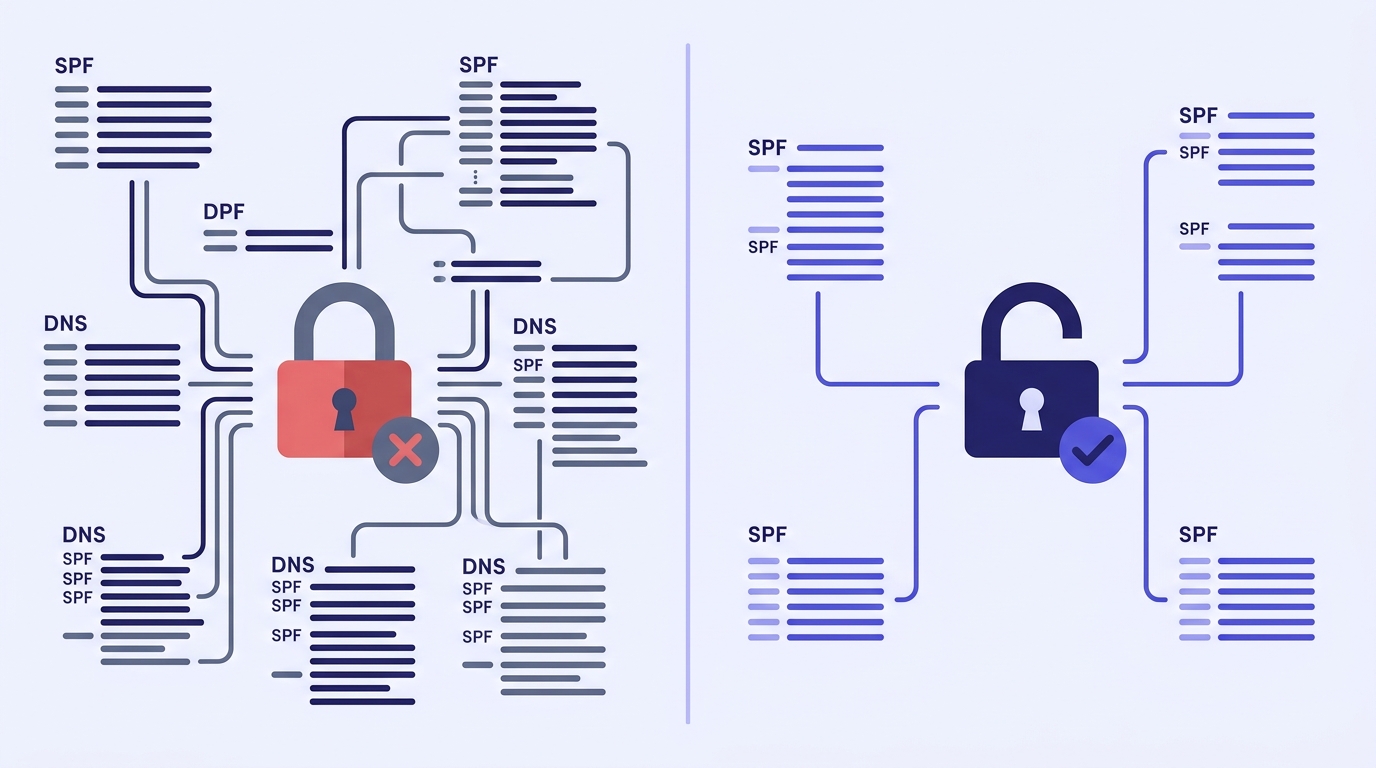
If you see spf=softfail, the sending IP isn't in your record but your qualifier is ~all — which means it was delivered anyway. This is exactly why ~all is not a permanent solution: it tells you there's a problem without actually blocking anything. Identify the missing sender, add it to your record, and consider moving to -all once you're confident.
If you see spf=fail, the sending IP is definitively not in your record and you have -all set. Either the sender wasn't added, or the IP range has changed. Check the ESP's current SPF documentation and update your record.
Here's the nuance that catches people: spf=pass in the header does not guarantee your email passes DMARC. SPF pass only counts toward DMARC alignment if the domain in the Return-Path (the envelope sender) matches the From: domain. When you send via a third-party ESP, the Return-Path is often something like bounces.sendgrid.net — which doesn't match yourdomain.com. In that case, SPF passes but DMARC alignment fails on the SPF check. DKIM alignment becomes the one that has to carry DMARC. This is why SPF and DKIM together are both necessary.
SPF, DKIM, and DMARC: how the three fit together
SPF authenticates the sending IP. DKIM authenticates the message content with a cryptographic signature tied to your domain. DMARC ties both to the From: domain your recipients see — and requires at least one of them to align with it.

You can have a perfect SPF record — syntactically valid, under 10 lookups, all legitimate senders listed — and still fail DMARC because the Return-Path domain your ESP uses doesn't match your From: domain. This is the alignment gap. It's not a bug in your SPF record; it's a structural feature of how third-party sending works. The solution is usually to configure custom return-path domains with your ESP (most support this) so the envelope sender matches your domain, achieving SPF alignment.
For bulk senders and cold outreach, the minimum viable authentication stack in 2025 is: SPF published with -all, DKIM configured with your ESP, and DMARC at p=none minimum. Google and Yahoo formalized this in their February 2024 sender requirements — bulk senders (over 5,000 messages per day to Gmail addresses) must have both SPF and DKIM, plus a DMARC record at p=none or stricter. The Google sender guidelines spell out the full requirements. p=none is the monitoring mode — it lets DMARC generate reports without rejecting mail — but it's a starting point, not a destination. The goal is p=quarantine or p=reject.
If you haven't set up DMARC yet, use the DMARC Record Generator to build one alongside your SPF record. Then use the DMARC Record Checker to verify both records are working together correctly — specifically that your SPF and DKIM are producing aligned passes, not just raw passes.
Free tool · no signup
Build your SPF record in under a minute
Add your sending services, set your qualifier, and copy a verified record ready to publish.
Free tool · no signup
Verify your published SPF record
Check lookup count, syntax, and resolution — before a bounce report tells you something's wrong.
Frequently asked questions
What is an SPF record and why do I need one?
How do I generate an SPF record for my domain?
What is the 10 DNS lookup limit and how do I stay under it?
include, a, mx, or exists mechanism costs at least one lookup; ip4 and ip6 cost none. If your record exceeds 10 lookups, receivers return a PermError and treat your record as a fail. Audit your current count before publishing, and replace include statements with direct ip4 ranges where possible to reduce lookup costs.What's the difference between ~all and -all in an SPF record?
~all is a soft fail — the message is accepted but flagged as suspicious. -all is a hard fail — the message should be rejected. Use ~all only during initial setup when you're not sure your record is complete. Once you've verified all legitimate senders are listed, switch to -all. Leaving ~all permanently is a common mistake that weakens your domain's authentication signal.Can I have two SPF records on the same domain?
Do subdomains need their own SPF records?
mail.yourdomain.com sends email, it needs its own SPF record at that subdomain. Domains you own but don't send from should publish v=spf1 -all to prevent spoofing attacks.How long does it take for an SPF record to propagate?
Why is my SPF record failing even though I published it correctly?
SPF is the foundation, but a published record that's never verified is just a guess. Run your domain through the checker after every change, read the Authentication-Results headers on your next test send, and treat your SPF record as a living document that needs updating every time your sending stack changes. The tool below handles the generation — the habit of verifying is yours to build.
Try Valid Email Checker free
Verify any email in under a second
Get 150 free verifications. No credit card. Auto-refund on every Unknown result — the only verifier we know that does this.
- 150 free credits when you sign up
- Auto-refund every Unknown verification (we're the only ones that do)
- 11-stage flow catches what 1-step checkers miss
- Drop-in integrations for Mailchimp, HubSpot, SendGrid, 14 more
Written by
Devon ParkDevon writes about the parts of email nobody puts on a landing page: SPF, DKIM, DMARC, MX records, and the DNS quirks that quietly decide whether your mail lands or bounces. His aim is to turn specs that read like legalese into something you can implement today — usually with the exact record to copy and a way to confirm it worked. When other guides hand-wave past setting up authentication, Devon stops and shows you how.