How to Sign an Email: 3 Methods + Why It Matters for
 Priya IyerAugust 1, 2026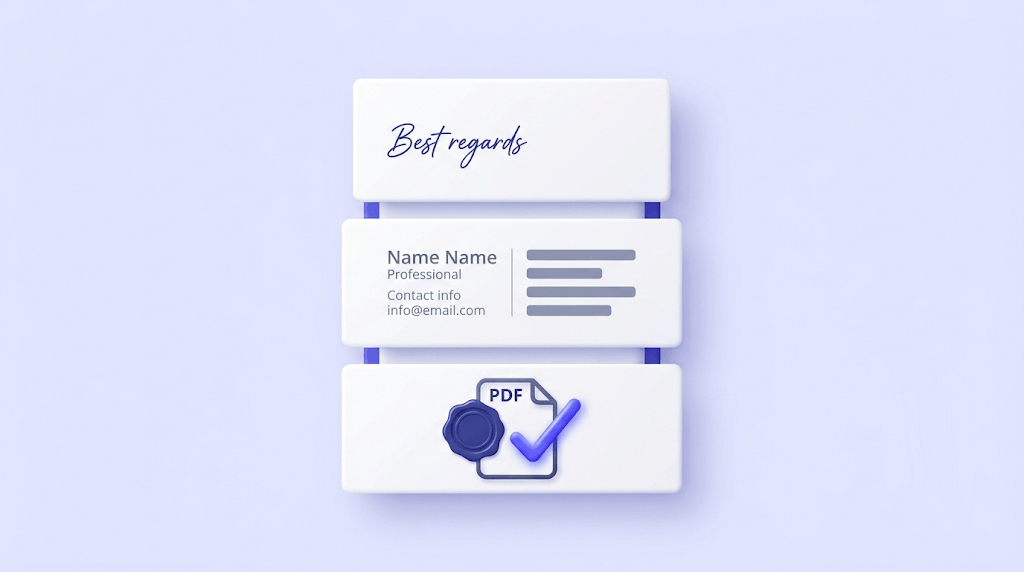
Knowing how to sign an email sounds simple until you realize the phrase means three completely different things — and most guides only explain one of them. You might be looking for the right closing phrase before your name, trying to build a professional signature block that appears below every message, or figuring out how to apply a legal electronic signature to a PDF someone sent you.
By the end of this post you'll know exactly how to handle all three — with step-by-step instructions for Gmail and Outlook, a framework for choosing the right closing phrase, and guidance on digital document signing. Then we'll cover the angle every other guide skips: what happens to your signature when your domain isn't authenticated or your list is full of bad addresses.
The trick most senders miss is that a beautifully crafted email signature is invisible if the underlying domain doesn't pass DMARC. We'll get to that — but let's start with the basics.
What 'signing an email' actually means (it's three different things)
Search 'how to sign an email' and you'll get career-advice blogs listing closings, Google Support articles about Gmail settings, and eSign platform tutorials about PDF workflows — all on the same results page, with no explanation of which one you actually need.
Here's the breakdown:
- Sign-off phrase — the closing line before your name ('Best regards,' 'Sincerely,' 'Thank you'). This is what most people mean when they ask about signing an email in a professional or personal context.
- Email signature block — the formatted block of contact information that appears automatically below your messages: name, title, company, phone, website, sometimes a logo. This is separate from the sign-off phrase, though they often appear together.
- Digital / electronic document signature — a legally meaningful mark applied to a document attachment (usually a PDF or Word file) sent via email. This is a different workflow entirely, governed by different tools and sometimes different laws.
Professional senders deal with all three. Developers integrating eSign flows focus on the third. People starting a new job usually just need the first two. This post covers them in that order — most-needed first.
How to choose the right sign-off phrase
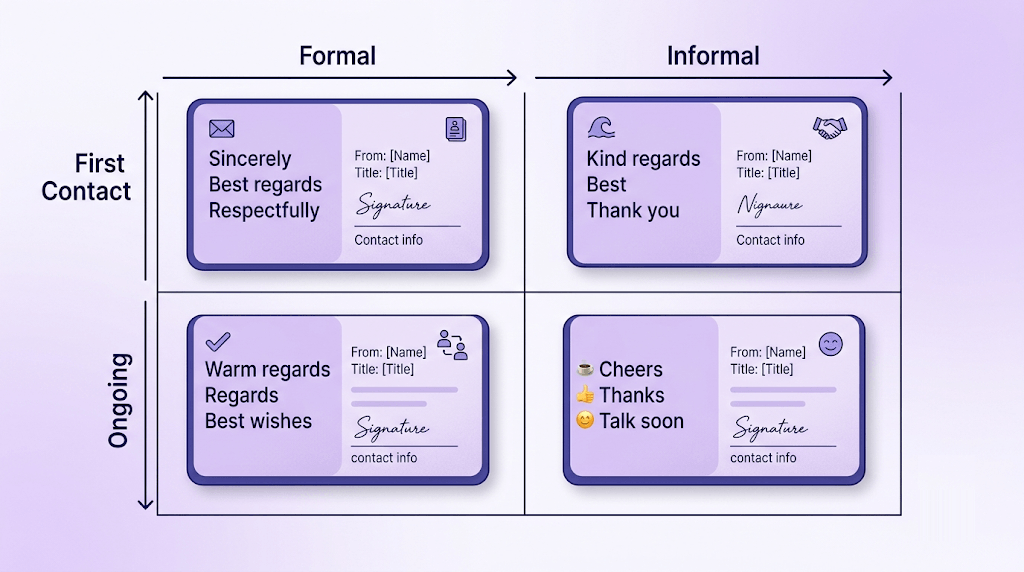
The fastest way to pick a closing is a four-quadrant framework: formal vs. informal on one axis, first contact vs. ongoing relationship on the other.
| First contact | Ongoing relationship | |
|---|---|---|
| Formal | Sincerely, Respectfully | Best regards, Kind regards |
| Informal | Best, Thank you | Thanks, Cheers (UK/AU only) |
A few specific guidance points worth knowing:
- 'Best regards' is the workhorse. It works for formal first contact, ongoing professional relationships, and most cold outreach. If you're unsure, use this.
- 'Sincerely' is appropriate for formal first contact — job applications, legal correspondence, introductory letters. It reads stiff in ongoing threads.
- 'Thank you' or 'Thanks' works well when you're making a request and want to acknowledge the effort before the recipient has even replied. It's slightly presumptuous in theory; in practice, nobody minds.
- 'Cheers' is standard in the UK and Australia. In the United States, it reads as affected to some recipients — use with caution if you're unsure of your audience.
- 'Talk soon,' 'Later,' 'XOXO' — skip these in any professional context. They work in text messages, not in emails to clients or hiring managers.
Punctuation matters more than most guides admit. The closing phrase gets a comma after it. The first letter is capitalized; everything after it is lowercase. So: Best regards, — not Best Regards, and not best regards.
On naming: use your first name only in ongoing relationships where you're already on first-name terms. Use your full name on first contact, in formal contexts, and any time the recipient might not immediately know which 'Sarah' you are.
Hiring managers notice your closing
Indeed's 2024 career guide notes that 47% of hiring managers pay attention to how candidates close their emails — and that missing or unprofessional closings are a common reason for negative first impressions. The closing phrase is a small thing with an outsized signal.
How to build a professional email signature block
Your sign-off phrase and your signature block are two separate elements. The closing phrase ('Best regards,') sits above your name. The signature block is the formatted contact section below it — and the two work together, not interchangeably.
A professional signature block contains five things:
- Your full name
- Your title and company name
- A direct phone number (not a general switchboard if you can avoid it)
- Your company website URL
- Optionally: a small company logo (under 100px height) and one or two relevant social links
What doesn't belong: inspirational quotes, animated GIFs, your full postal address unless you're in a regulated industry that requires it, and more than two social icons. Every element you add beyond the core five increases the chance of triggering a spam filter or breaking in a plain-text email client.
HTML vs. plain-text signatures is a real consideration. HTML signatures look polished in Gmail and Outlook's preview pane but occasionally render as a wall of code in older clients, forwarded threads, or plain-text-only environments. The safest approach: use HTML for your primary signature, but keep the formatting conservative — no custom fonts, no background colors, no JavaScript.
Gmail's signature editor caps at 10,000 characters including HTML markup. Images embedded via URL count toward that limit differently than base64-encoded images — linked images (hosted externally and referenced by URL) are the safer choice.
If you manage multiple contexts — client-facing vs. internal, new emails vs. replies — most clients support multiple saved signatures. Set a formal signature as the default for new emails and a shorter version (name and phone only) for replies, where a full block feels like padding.
The fastest way to produce a consistent, on-brand block without touching HTML manually is an email signature generator. You fill in the fields, pick a layout, and get clean HTML you can paste directly into Gmail or Outlook.
Free tool · no signup
Build a professional signature block in two minutes
Fill in your details, pick a layout, get clean HTML ready to paste into Gmail or Outlook.
How to set up your email signature in Gmail
Open Gmail settings
Click the gear icon in the top-right corner of Gmail, then click See all settings. This opens the full settings panel — not the quick-settings sidebar.
Find the signature section
Stay on the General tab and scroll down until you see Signature. Click Create new, give the signature a name (e.g. 'Primary' or 'Replies'), and start editing in the rich-text box.
Add your content
Type your name, title, and contact details. Use the formatting toolbar to adjust font size and add a horizontal rule if you want visual separation. To add a logo, click the image icon and paste a hosted image URL — avoid uploading directly if the file is over 5MB.
Set signature defaults
Below the editor, use the Signature defaults dropdowns to assign your signature to new emails and to replies/forwards separately. This is the step most people skip — and why their signature shows up on new emails but disappears on replies.
Save and test
Scroll to the bottom of the settings page and click Save Changes. Open a new compose window to confirm the signature appears. Send a test to yourself to see how it renders.
Mobile Gmail (iOS and Android)
Open the Gmail app → tap your profile picture → Manage your Google Account is not the right path here. Instead: tap the three-line menu → Settings → tap your email address → Signature settings → toggle on Mobile Signature and enter your text. Note that mobile signatures are plain-text only — no HTML formatting.
Switch signatures mid-compose
While writing an email, click the pen icon at the bottom of the compose window to swap between saved signatures without changing your defaults. Useful when you're writing a formal proposal but your reply signature is set to the shorter version.
If you want a signature that's already formatted and optimized for Gmail's character limits, the Gmail signature generator outputs HTML you can paste directly into the editor — no manual styling required.
Free tool · no signup
Create a Gmail-ready signature
Formatted HTML, within Gmail's limits, ready to paste in 60 seconds.
How to set up your email signature in Outlook
Outlook has two separate signature settings depending on whether you're using the desktop application or the web version — and they don't sync automatically.
Desktop Outlook (Windows): Go to File → Options → Mail → Signatures. Click New, name the signature, and use the editor to build it. In the 'Choose default signature' section on the right, assign it to an email account and choose whether it appears on new messages, replies, or both.
Outlook on the web: Click the gear icon → View all Outlook settings → Mail → Compose and reply. The signature editor is on that page. You can toggle 'Automatically include my signature on new messages' and 'Automatically include my signature on messages I forward or reply to' independently.
If you manage multiple accounts in desktop Outlook, the 'Choose default signature' panel lets you assign different signatures to each account. This is useful if you're handling a personal address and a work address from the same Outlook install.
One common formatting issue: Outlook's rich-text editor and its HTML editor don't always agree. If you paste HTML from an external generator and it looks broken, try pasting it into the HTML source view (look for 'Edit Source' or the <> button depending on your Outlook version) rather than the WYSIWYG editor.
Mobile Outlook: On iOS and Android, tap your profile icon → Settings → tap your account → Signature. Like Gmail mobile, this is plain-text only. If you need formatted signatures on mobile, you'll need a mobile device management (MDM) solution that pushes HTML signatures — that's an enterprise workflow outside the scope of this post.
How to digitally sign a document sent by email
This is a different workflow from everything above. When someone sends you a contract, NDA, or form as an email attachment and asks you to 'sign and return,' they're asking for an electronic signature on a document — not a closing phrase or a signature block.
The legal distinction matters. A typed name in the body of an email reply ('Agreed — John Smith') is legally sufficient for many informal agreements in many jurisdictions. But for contracts, real estate transactions, financial documents, or anything where the other party might later dispute authenticity, you need either a platform-based eSignature or a cryptographic digital signature.
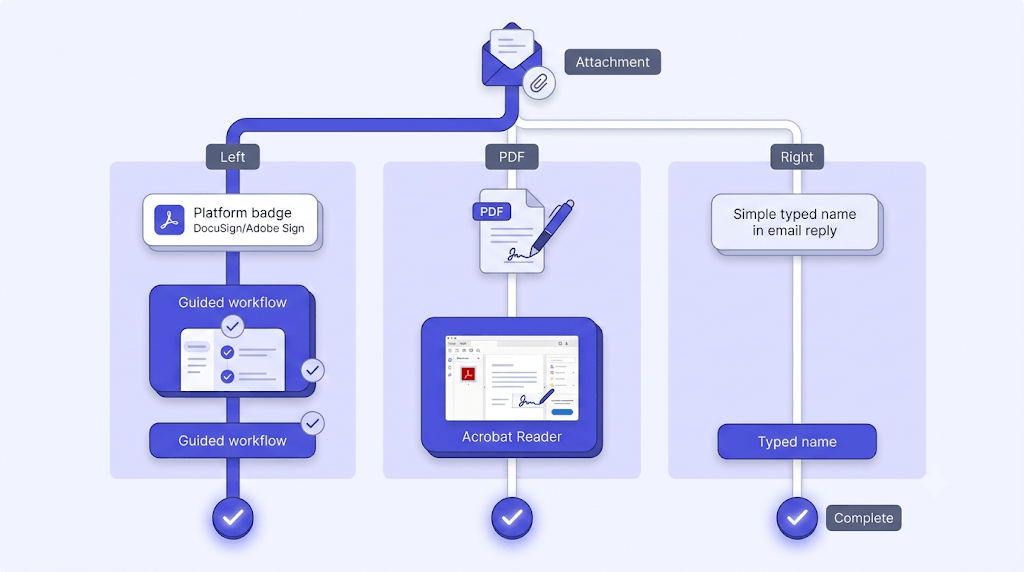
The basic flow for most document-signing requests:
- Open the attachment (PDF or Word file).
- If the sender used an eSign platform (DocuSign, Adobe Sign, HelloSign), they'll usually include a button or link in the email body — click that and follow the platform's guided flow.
- If they just attached a PDF with no platform link, open it in Adobe Acrobat Reader (free) → Tools → Fill & Sign → Sign → Add Signature.
- If a typed name is sufficient, type it in the signature field or in a reply email and confirm agreement explicitly.
- Return the signed document as a reply attachment or via the platform — whichever the sender specified.
If the sender's platform requires a specific tool you don't have, reply and ask whether a different eSign service is acceptable. Most platforms accept signatures from any ESIGN-compliant tool under the US Electronic Signatures in Global and National Commerce Act, or eIDAS in the EU.
Email signature best practices for teams and companies
Inconsistent signatures across a team aren't just a visual problem — they're a brand trust problem. When a prospect receives emails from three different people at your company and each one has a different font, a different logo size, and a different phone format, it signals internal disorganization.
Here's what to standardize and what to leave flexible:
- Standardize: Logo (one version, one size — typically 100–150px wide), font family and size (match your brand guidelines or default to Arial/Helvetica 10–11pt), disclaimer text if your industry requires it (financial services, healthcare, legal), and social link selection (pick two, maximum three platforms).
- Leave flexible: The individual's name, title, direct phone number, and headshot if your brand uses them.
- Don't standardize via honor system. If you ask 50 people to manually update their signatures, you'll get 50 different interpretations. Use a signature generator that outputs a template employees fill in, or a centralized signature management platform if you're at scale.
The update problem is the one that bites most teams. Someone gets promoted, a phone number changes, the company rebrands — and six months later half the team is still sending emails with the old logo. Build a process: whenever something changes in the company directory, the signature template updates first.
For teams without a dedicated IT function, an email signature generator with a shareable template link is the lowest-friction solution. One person configures the layout; everyone else fills in their details and copies the HTML.
The deliverability angle nobody mentions
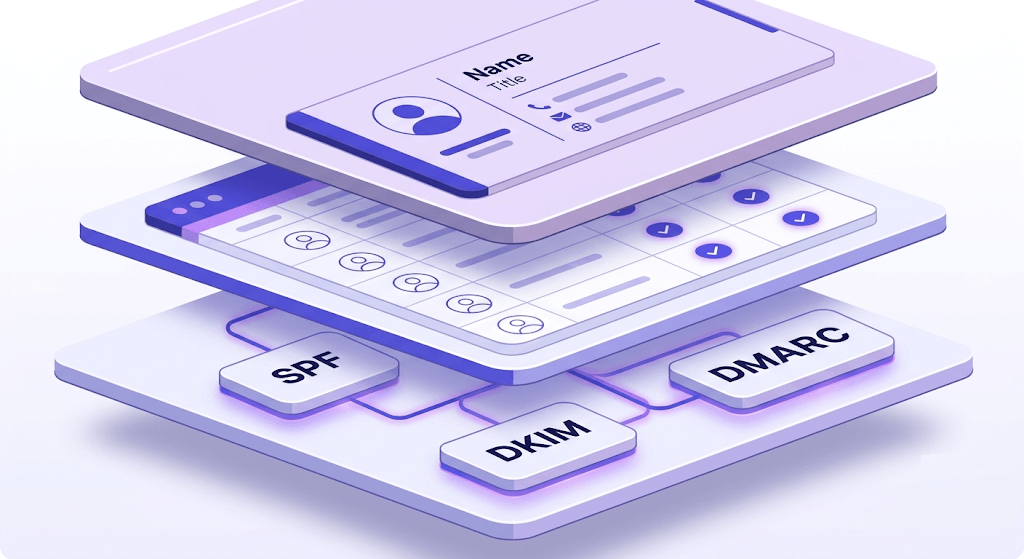
Every other guide on this topic stops at the design and setup layer. Here's what they don't cover: your signature is only visible if the email reaches the inbox. And inbox placement depends on factors that have nothing to do with your closing phrase.
A few specific risks worth knowing:
Broken image links in your signature increase your spam score. If your company logo is hosted at a URL that's unreachable — because the image server is down, the file was moved, or you're using a local path instead of a public URL — some spam filters flag it. Test your signature by sending to a Gmail address and checking whether the logo loads.
Heavy HTML in signatures adds to your total message weight. Most major spam filters score on content-to-code ratio. A signature with 4KB of nested table markup, three tracking pixels, and five social icons tips the balance toward code-heavy, which correlates with promotional or spam content.
Role-based From addresses compound the problem. If your emails come from info@ or support@ — addresses that our verification engine classifies as role-based — engagement rates are structurally lower because these addresses often land in filtered tabs or get bulk-unsubscribed. The sign-off name in the email body ('Best regards, Sarah') doesn't override the From field signal.
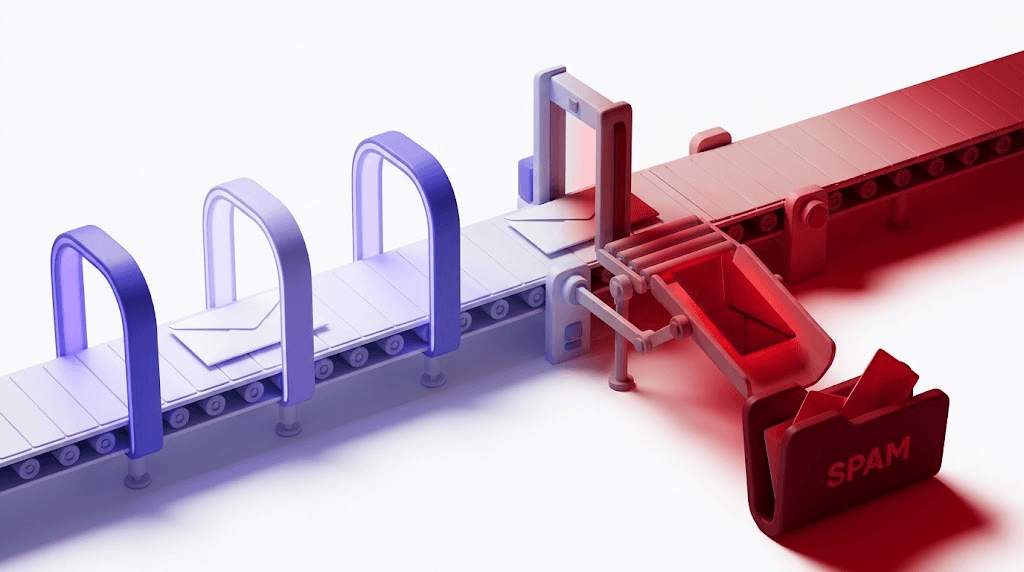
The deeper issue is domain authentication. A domain without DMARC tells inbox providers they can't trust your From field. If a receiver can't verify that your domain is actually sending the message, the carefully formatted signature below your name might never be seen — the email lands in spam or gets rejected outright. You can check your DMARC record in about 30 seconds to see where you stand.
Google's email sender guidelines now require DMARC alignment for bulk senders. The DMARC specification (RFC 7489) defines exactly what that alignment means — and if you're not passing it, your inbox placement suffers regardless of how polished your signature looks.
And then there's the list itself. Sending to invalid addresses generates hard bounces. Hard bounces damage your sender reputation. A damaged sender reputation means your authenticated, well-signed emails start landing in spam for everyone on your list — including the valid addresses. The email deliverability pillar guide covers this in full, but the short version is: run a deliverability check on your domain before your next send.
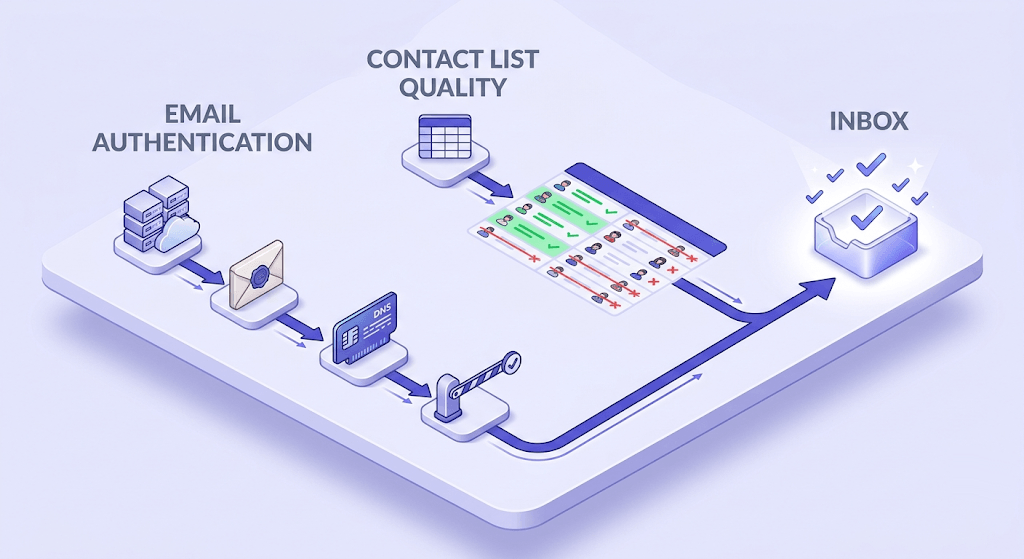
This is why the email authentication pillar and list hygiene aren't separate topics from email signatures — they're prerequisites. If you're investing time in building a professional signature, spend five minutes confirming your domain is actually set up to deliver it.
Don't let a stale list undermine a polished signature
Every hard bounce from an invalid address chips away at your sender reputation. Over time, that means your authenticated, well-signed emails start hitting spam for valid recipients too. Verify your list before your next campaign — Valid Email Checker's 11-stage engine flags invalid, disposable, and role-based addresses before they do damage.
Check an email address before you send
Valid Email Checker runs 11 verification stages and auto-refunds any Unknown result — no credit wasted.
Powered by Valid Email Checker — full SMTP handshake, disposable + role detection, no card required.
Frequently asked questions
Frequently asked questions
What is the difference between an email sign-off and an email signature?
What is the best professional email sign-off for any situation?
How do I add or change my signature in Gmail?
How do I set up a signature in Outlook?
What should be included in a professional email signature?
How do I digitally sign a document that was sent to me by email?
Can I have different signatures for different types of emails?
Does my email signature affect deliverability or spam filtering?
A well-crafted sign-off and a clean signature block are worth the five minutes they take to set up. But they only pay off when the email actually reaches the inbox. Run a deliverability check on your domain and verify a sample of your list before your next campaign — that's where most senders leave performance on the table.
Try Valid Email Checker free
Verify any email in under a second
Get 150 free verifications. No credit card. Auto-refund on every Unknown result — the only verifier we know that does this.
- 150 free credits when you sign up
- Auto-refund every Unknown verification (we're the only ones that do)
- 11-stage flow catches what 1-step checkers miss
- Drop-in integrations for Mailchimp, HubSpot, SendGrid, 14 more
Written by
Priya IyerPriya writes about the human side of email — how you word it, when you send it, and how to grow a list without wrecking your deliverability. From sign-offs and subject lines to lifecycle automation and list hygiene, she's after email that respects the reader's inbox and still gets results. Her north star: more opens and replies, fewer unsubscribes and spam complaints.