How to Email Large Videos Without Damaging Sender Reputation
 Mara ChenJune 28, 2026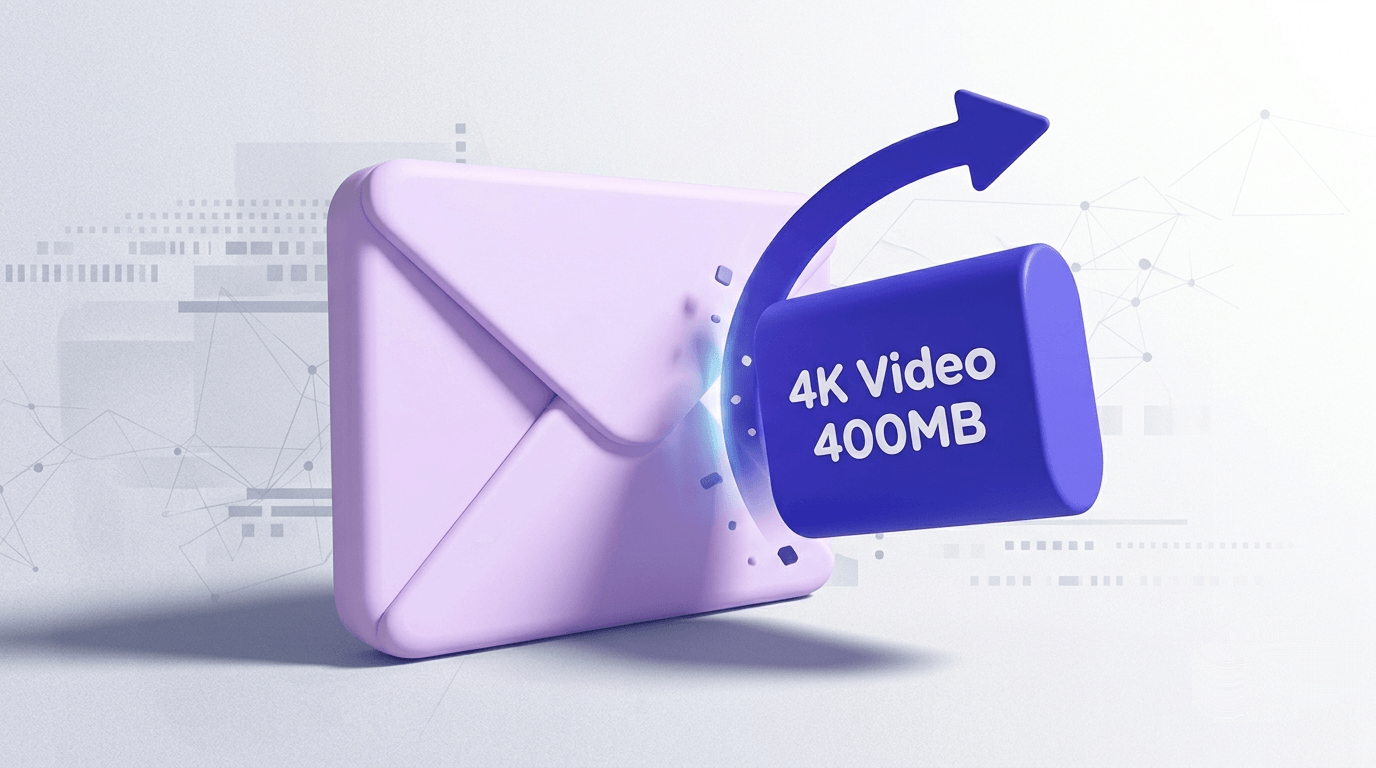
Gmail caps attachments at 25 MB. Outlook does the same. Yahoo draws the line at 25 MB too. A single minute of 4K footage straight off a modern camera can hit 400 MB — sixteen times the limit before you've even added a title card.
In the next few minutes you'll know exactly which method to use for your situation — cloud link, transfer service, compression, or hosted video — and how to pick the right one without asking the recipient to jump through hoops.
There's also an angle none of the usual guides mention: a bounce from an oversized attachment counts against your sender reputation the same way a bad email address does. That detail matters more than the workaround itself.
Why email chokes on large video files
The 25 MB ceiling has been in place, more or less, since the early 2000s. Gmail introduced it in 2004, Outlook has enforced a similar limit for decades, and Yahoo matches it. Storage costs have dropped by orders of magnitude since then — so why hasn't the limit moved?
Two reasons. First, SMTP — the protocol that actually moves email between servers — was designed for text. Attachments are Base64-encoded, which inflates binary files by roughly 33% before they even leave your outbox. A 19 MB video becomes a 25 MB SMTP payload. Second, attachments are a major spam-abuse surface. Malware, phishing payloads, and bulk junk have historically arrived as attachments. Keeping the ceiling low reduces server load and limits how much damage a single send can do.
On the file-size side, the math compounds quickly. One minute of 4K footage at 60fps in H.264 runs 300–500 MB depending on your camera's bitrate. Add color grading, a music track, and an export in ProRes or DNxHD and you're well into gigabyte territory before you've trimmed the slate.
What actually happens when you exceed the limit depends on the provider. Gmail bounces the message back to you with a clear error. Outlook does the same. Some corporate mail servers silently strip the attachment and deliver the email without it — the recipient gets a blank message and has no idea why. That silent failure is the worst outcome: you assume it arrived, they assume you forgot to attach something, and nobody follows up.

Method 1: share a cloud storage link instead of an attachment
This is the default fix for most people, and it works well when both you and the recipient are already inside a Google or Microsoft ecosystem.
Upload the video to Google Drive, OneDrive, or iCloud, then paste the shareable link into the email body. The recipient downloads it on their end — no attachment size limit involved. The video never travels through SMTP at all.
Permission settings matter before you hit send. If you share with "Anyone with the link" and set it to view-only, the recipient can watch but not download. If they need the file itself — an editor, a client who wants the raw cut — flip it to download-enabled. Don't share edit access unless you actually want them to modify the file.
Gmail + Google Drive
Open Gmail compose. Click the Google Drive icon in the toolbar (the triangle). Select your video from Drive — or upload it first if it isn't there yet. Gmail inserts a Drive link, not an attachment. Set the sharing permission in the dialog that appears before sending.
Outlook + OneDrive
Open a new Outlook email. Click 'Attach' → 'Browse cloud locations' → OneDrive. Select the file. Outlook will ask whether to send as an attachment or a link — choose 'Share as a OneDrive link'. Set permissions in the sharing dialog.
Recipient experience
The recipient clicks the link and lands on a preview page. For Google Drive, they don't need a Google account to view or download — the link handles it. For OneDrive, anonymous access works the same way if you've set the link to 'Anyone'. If you accidentally set it to 'Specific people', they'll hit a permission wall and have to request access.
The main limitation: if your recipient works at a company with restrictive IT policies, external Google Drive or OneDrive links sometimes get blocked at the firewall. In that case, a dedicated file transfer service is the safer choice.
Method 2: use a dedicated file transfer service
WeTransfer, Dropbox Transfer, and similar services exist for exactly this use case. The key difference from cloud storage: the recipient doesn't need an account, and the link expires automatically — usually after 7 days on free tiers.
Here's the practical breakdown across the major free tiers:
| Service | Free file size limit | Link expiry | Recipient account needed? | Password protection |
|---|---|---|---|---|
| WeTransfer | 2 GB | 7 days | No | Paid only |
| Dropbox Transfer | 100 MB (free) / 2 GB (Plus) | 30 days (paid) | No | Paid only |
| Smash | 2 GB (free) | 7 days | No | Free |
| Send Anywhere | 10 GB | 48 hours (free) | No | Free (6-digit key) |
Transfer services beat cloud storage in one specific scenario: external clients who don't have a Google or Microsoft account and don't want to create one. The link works in any browser, the download starts immediately, and the link disappears after the expiry window — which can actually be a feature when you're sending sensitive client deliverables you don't want floating around indefinitely.
Always tell the recipient the expiry date in the email body. "The link above expires in 7 days — download by [date]" takes 10 seconds to type and prevents the follow-up email asking why the link is broken.
For sensitive footage — unreleased work, client-confidential material, anything you'd be uncomfortable seeing shared — use a service that offers password protection even on the free tier. Smash and Send Anywhere both do. WeTransfer requires a paid plan.
Method 3: compress the video before attaching
Compression makes sense in a narrow band of situations: short clips, personal videos, anything where the recipient just needs to see it rather than use it. For client deliverables or archival footage, skip this method entirely.
The resolution-vs-file-size trade-off in plain numbers, at 60 seconds of footage, H.264, 30fps:
- 4K (3840×2160): ~400–800 MB depending on bitrate
- 1080p (1920×1080): ~100–200 MB
- 720p (1280×720): ~50–80 MB
- 480p (854×480): ~20–35 MB — often small enough to attach
Codec matters more than resolution. Switching from H.264 to H.265 (HEVC) cuts file size roughly in half at the same visual quality. A 100 MB 1080p H.264 file becomes ~50 MB in H.265 without a perceptible quality difference on most screens. The catch: older devices and some email clients can't play H.265 natively, so the recipient may need VLC or a modern browser to open it.
Free tools worth using:
- HandBrake (Windows, Mac, Linux) — free, open-source, full codec control. Choose H.265, set a constant quality (RF 22–28 is the sweet spot), and you'll usually hit the size you need.
- Clideo (browser-based) — no install required. Upload, pick a resolution, download. Good for one-off personal clips. 500 MB limit on the free tier.
- iPhone — when sharing from Photos, iOS offers to reduce file size automatically for clips. The option appears in the share sheet as 'Reduce File Size'.
- Android — Google Photos has a 'Send a link' option that uploads first and shares a link, bypassing compression entirely. If you need an actual compressed file, a third-party app like Video Compress handles it.
When not to compress: anything a client is paying for, anything you'll archive, anything shot in RAW or ProRes where the data in the file is the point. Compression is lossy — you can't get the original back once it's gone.
Method 4: host the video and embed a thumbnail link
For marketing and sales emails, this is the only method that makes sense. Upload to YouTube (unlisted) or Vimeo, paste the URL into the email, and let the platform handle delivery. The recipient watches in-browser. No download, no file size issue, no attachment.
YouTube's unlisted setting is the right choice for most external sharing. Unlisted means the video doesn't appear in search or on your channel, but anyone with the link can watch it. Private means only specific Google accounts you invite can watch — which breaks access for anyone without a Google account. Public is self-explanatory and usually wrong for client or sales content.
Vimeo's free tier limits total storage to 5 GB and monthly uploads to 500 MB, but the privacy controls are better — you can restrict playback to specific domains or require a password without needing a paid plan.
Here's the deal: most email clients don't actually play embedded video. Gmail strips video embeds. Outlook blocks them by default. What they do render is a preview image. So the professional approach is to create a static thumbnail — a screenshot of the video with a play button overlaid — and link that image to the video URL. The recipient sees what looks like a video player, clicks it, and lands on YouTube or Vimeo. It works in every email client, including the ones that strip everything.

Sending large videos from a phone
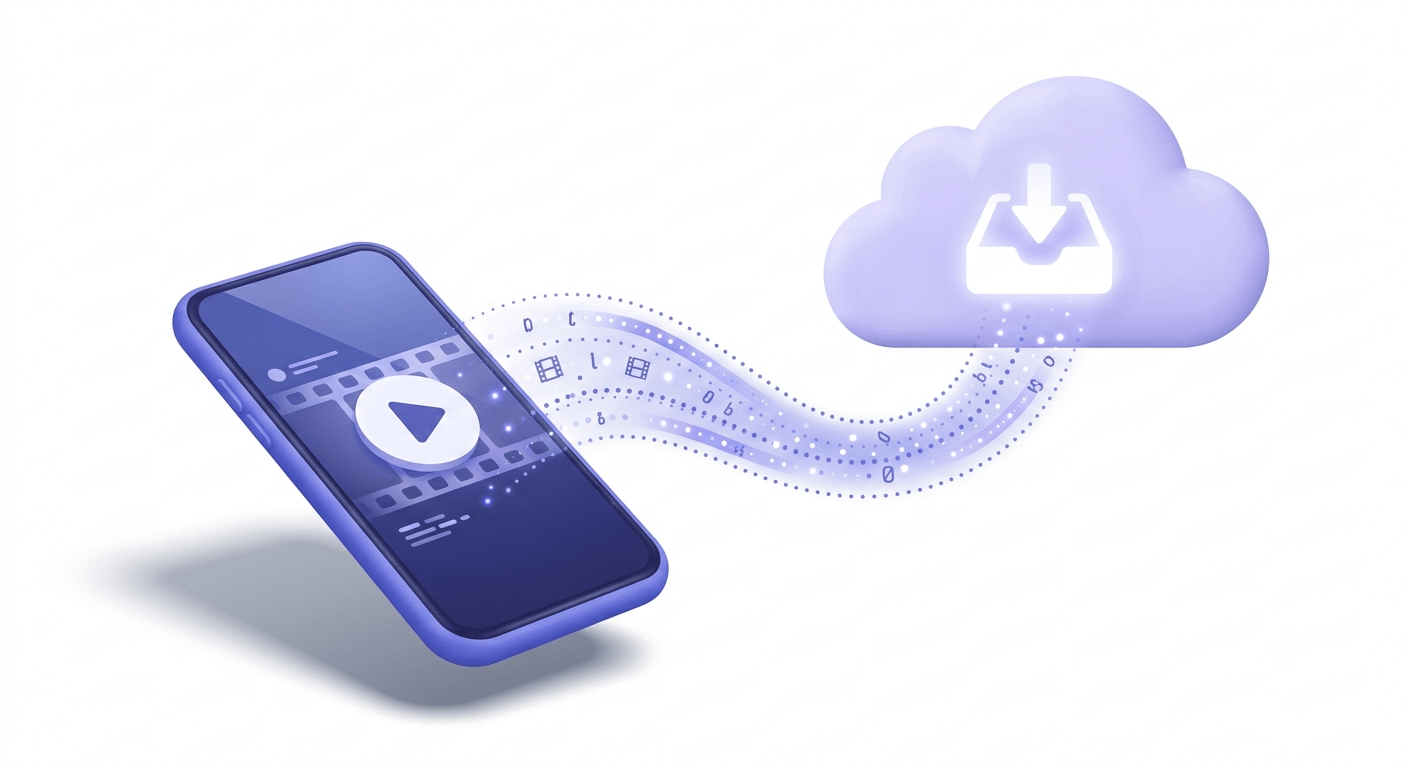
The phone case is worth addressing separately because the instinct — texting the video — is the worst option. Carrier MMS compression is aggressive: a 4K clip sent via iMessage or standard SMS gets downscaled to something that looks fine on a phone screen and terrible on a laptop. The recipient gets a degraded copy and you have no control over how much quality is lost.
The better options by platform:
- iOS to iOS: AirDrop transfers the original file with no compression, but only works when both devices are nearby. For remote sharing, open Photos, select the video, tap the share icon, and choose 'Copy iCloud Link'. The link is good for 30 days and works for anyone — they don't need an Apple account.
- iOS to Android or PC: Use Google Photos (free, available on iOS). Select the video, tap Share → 'Create link'. Google Photos uploads the original and generates a link. No compression.
- Android: Google Photos is the cleanest option here too. Alternatively, open the Files app, select the video, and upload directly to Google Drive — then share the Drive link.
- Both platforms: WeTransfer's mobile app handles the upload and generates a transfer link without requiring the recipient to have an account. Dropbox mobile does the same if you already use Dropbox.
Choosing the right method for your situation
The four methods aren't equivalent. The right one depends on four variables: file size, how technically comfortable the recipient is, how sensitive the content is, and how fast they need it.
| Situation | Best method | Why |
|---|---|---|
| Internal team sharing | Cloud storage (Drive / OneDrive) | Org-level permissions, no expiry, version history |
| External client, one-time delivery | File transfer service (WeTransfer / Smash) | No account required, auto-expiry, optional password |
| Marketing or sales email | Hosted video + thumbnail link (YouTube / Vimeo) | No download, works in every email client, trackable |
| Short personal clip under 25 MB after compression | Compressed attachment | Simplest for the recipient — one step to open |
| Sensitive / confidential footage | Password-protected transfer service | Link expires, access is gated, no cloud account required |
One nuance worth naming: for marketing sends specifically, the hosted-video-with-thumbnail approach is not just convenient — it's the only option that doesn't actively harm your sender reputation. Which leads to the part of this most guides skip entirely.
What this has to do with email deliverability (and why marketers should care)
Here's the angle nobody in the usual cloud-storage-or-compression discussion mentions: a bounce from an oversized attachment is mechanically identical to a bounce from a bad email address. The receiving server rejects the message, returns a 5xx permanent failure code, and that rejection registers against your sender reputation. Your ESP logs it as a hard bounce.
Most senders think of hard bounces as a list-quality problem — bad addresses, deactivated accounts, typos. They are. But an attachment that exceeds the recipient server's size limit produces the same SMTP rejection code. If you're sending a 30 MB video to 500 contacts and 200 of those contacts are on corporate mail servers with a 20 MB limit, you've just hard-bounced 200 sends. That's a 40% hard bounce rate on that campaign. Your domain's sender score doesn't know the difference between "bad address" and "attachment too big" — it just sees the rejections. For context on how Google's sender guidelines treat bounce thresholds, they're explicit: high bounce rates lead to delivery failures across the board.
You can read the bounce header on any returned message to confirm this — the error will say something like 552 5.3.4 Message size exceeds fixed maximum message size or 552 Too large. The error code is the same class as a permanent address failure.
There's a secondary problem: even when a provider allows large attachments, attaching video files in marketing emails trains spam filters to flag your domain. Filters score messages on dozens of signals; large binary attachments are a high-weight negative signal because they're a common malware delivery vector. A message with a hosted video link scores clean. The same message with a video file attached scores suspicious.
The three pillars of inbox placement are: a verified list, no attachments in bulk sends, and hosted media instead of embedded files. If you want to check your sender reputation and see how your domain currently scores before your next send, that's the place to start. And if your list hasn't been verified recently, the bounce rate from bad addresses compounds everything else — you can read more about why in our guide on email deliverability and list quality.
Check an address before you send
Paste any email address to see its full 11-stage verification result. Unverified lists are the other half of the bounce problem.
Powered by Valid Email Checker — full SMTP handshake, disposable + role detection, no card required.
Attachment bounces and address bounces are the same problem wearing different clothes. Hosting your video fixes one side. Verifying your list fixes the other. How to reduce your email bounce rate below 2% covers the list side in detail — it's worth reading alongside this one.
Free tool · no signup
See how your domain scores before your next send
Check sender reputation, blacklist status, and authentication in one place — free.
Frequently asked questions
What is the maximum video file size you can attach to an email?
How do I send a video that is too large to attach to Gmail or Outlook?
Does compressing a video reduce its quality?
Can I send a large video from my phone without losing quality?
What is the best free service to send large video files?
Do video attachments hurt email deliverability?
How long do WeTransfer or similar links stay active before expiring?
What happens to my sender reputation if an email bounces because the attachment is too large?
The attachment limit is a symptom of how SMTP was built, and it isn't going away. The methods above route around it cleanly — cloud links for teams, transfer services for clients, hosted video for anything marketing-shaped. The deeper point is that sending hygiene and list hygiene are the same discipline: both come down to not generating bounces you could have avoided. If your list is due for a clean, the email deliverability checker and the verifier below are the fastest way to find out where you stand.
Try Valid Email Checker free
Verify any email in under a second
Get 150 free verifications. No credit card. Auto-refund on every Unknown result — the only verifier we know that does this.
- 150 free credits when you sign up
- Auto-refund every Unknown verification (we're the only ones that do)
- 11-stage flow catches what 1-step checkers miss
- Drop-in integrations for Mailchimp, HubSpot, SendGrid, 14 more
Written by
Mara ChenMara covers deliverability from the receiving end — the filters, reputation signals, and quiet rejections that decide whether you reach the inbox or the spam folder. She cares less about clever subject lines than the unglamorous fundamentals that actually move placement: clean lists, consistent sending, and a sender reputation you don't have to rebuild every quarter. Expect practical, no-hype advice grounded in how mailbox providers really behave.