How to Fix Slow DNS Lookup: Measure Before and After
 Devon ParkJune 9, 2026
Your speed test says 500 Mbps. Pages still take 10 seconds to start loading. Then they fly. That gap — between the click and the first byte — is almost always DNS.
ok By the end of this guide you'll be able to identify exactly which layer is causing the delay, run a before/after measurement that proves whether a fix worked, and handle both sides of the problem: your resolver and your domain's own DNS configuration.
The specific trick most guides skip: pairing every fix with a test command so you're not guessing which change actually moved the number.
What slow DNS actually feels like (and why it's not your internet speed)
The symptom is distinctive. You click a link and the browser tab spinner runs for 8–15 seconds with the loading bar frozen at zero. Then suddenly everything rushes in and the page finishes in under a second. Your internet connection is fine — it's just sitting idle waiting for an answer that hasn't come back yet.
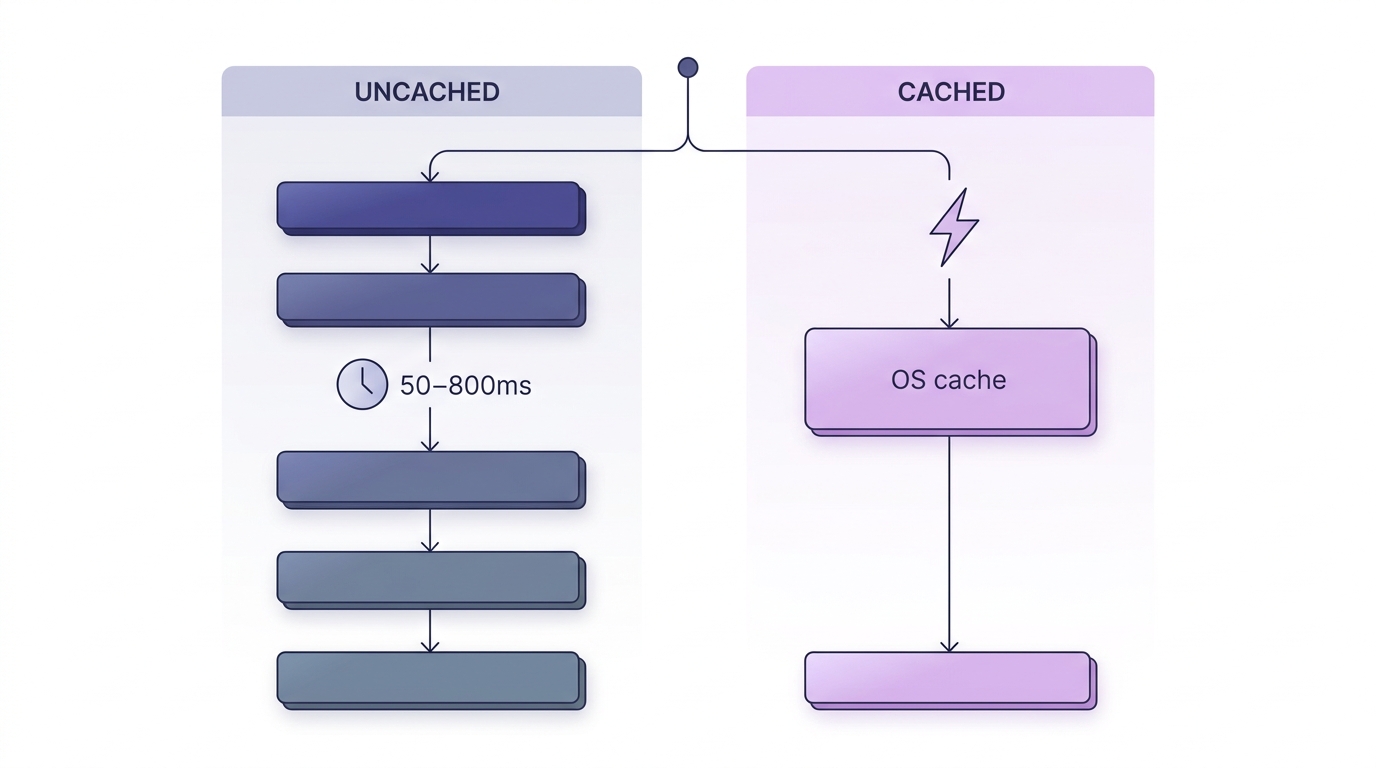
DNS resolution happens before a single byte of page content transfers. When you navigate to a domain, your OS asks a resolver "what IP address is this?" and waits. Only after that answer arrives does the TCP connection open, the TLS handshake happen, and the first HTML byte move. If the resolver is slow, everything downstream is slow — regardless of your bandwidth.
The simplest diagnostic is the second-load test. Load a page cold and time the stall. Reload it immediately and notice it starts almost instantly. That's because the OS cached the DNS result on the first lookup. The second load skipped the resolver entirely. If the second load is dramatically faster, DNS is your culprit.
What counts as slow? A healthy DNS lookup on a well-configured machine with a modern public resolver runs 10–80ms. Anything under 120ms is acceptable. Lookups in the 200–800ms range are noticeably sluggish. Anything above a second — which happens more often than you'd think, especially on Windows machines with multiple network adapters — is a configuration problem, not a network problem.
The five root causes worth diagnosing first
Before touching any settings, it helps to know which of these you're actually dealing with. They have different fixes and different test signatures.
- Overloaded ISP resolver. Most ISP DNS servers run 80–200ms per query under normal load and spike far higher during peak hours. This is the most common cause for home users.
- Multiple network adapters with conflicting DNS settings. On Windows, this is the most common cause for developers and IT staff. Hyper-V, WSL, Docker, and VPN adapters all register their own DNS servers. Windows queries all of them and waits for timeouts on the unreachable ones.
- Stale or corrupted OS/browser DNS cache. The cache stores answers from previous lookups. If a cached record points to an old IP or a failed resolver, every lookup for that domain stalls until the TTL expires.
- Geographic mismatch. Your resolver may be physically far from the authoritative nameserver for a domain. Round-trip latency to the root nameservers adds up.
- IPv6 fallback delays. Dual-stack resolvers try AAAA records first. If your ISP or router has incomplete IPv6 support, every lookup waits for a timeout before falling back to the IPv4 A record — adding 3–10 seconds per new domain.
The fixes below are ordered by how often each cause appears in the wild. Start with Fix 1 if you haven't changed your DNS resolver. Jump to Fix 3 if you're on Windows with any developer tooling installed.
Fix 1: Switch to a faster public DNS resolver
Your ISP assigns you a resolver by default. That resolver is shared with every customer on your local exchange, runs legacy hardware, and often isn't the closest option geographically. Switching takes three minutes and is the highest-impact single change most people can make.
The three resolvers worth considering:
- Cloudflare 1.1.1.1 / 1.0.0.1 — consistently the fastest in independent benchmarks. DNSPerf ranks it first globally for query speed, averaging under 15ms. Privacy-focused: no query logging sold to third parties.
- Google 8.8.8.8 / 8.8.4.4 — reliable anycast network, good global coverage, slightly slower than Cloudflare in most regions but with a longer track record. A solid fallback.
- OpenDNS 208.67.222.222 / 208.67.220.220 — adds optional content filtering categories, useful if you're setting this at the router level for a household or office network.
Where to change it: On Windows, open Network Connections (Win+R → ncpa.cpl), right-click your active adapter, Properties → Internet Protocol Version 4 → Use the following DNS server addresses. On macOS, System Settings → Wi-Fi → your network → Details → DNS tab → add the new server and remove the old one. At the router level, the setting is usually under WAN or DHCP configuration — changing it there covers every device on your network without touching individual machines.
Before you commit, run GRC's DNS Benchmark from your actual machine. It tests 200+ resolvers against your real network conditions and ranks them by latency. The fastest resolver globally isn't always the fastest from your location — the tool removes that guesswork.
Test before and after
On Windows, run nslookup example.com before switching and note the server and response time. Switch DNS, flush the cache (Fix 2 below), then run the same command. You should see both the server address change and the query time drop.
Fix 2: Flush and rebuild your DNS cache
The OS maintains a local cache of recent DNS answers. This is normally a good thing — it means repeat visits to the same domain skip the resolver entirely. But the cache can hold stale entries: old IPs from before a site migration, answers from a resolver you just replaced, or corrupted records left over from a VPN session.
Flushing is non-destructive. You're not deleting anything permanent — the cache rebuilds itself on the next lookup with fresh TTL values. Do it any time you change DNS servers, after a site migration, or when a specific domain is consistently slow despite your resolver being fast.
Windows (run as administrator):
ipconfig /flushdnsmacOS:
sudo dscacheutil -flushcache; sudo killall -HUP mDNSResponderChrome also maintains its own internal DNS cache, separate from the OS. Flushing the OS cache doesn't touch it. To clear Chrome's cache, navigate to chrome://net-internals/#dns and click Clear host cache. If you're seeing slowness on specific domains in Chrome but not in other browsers, this is where to look.
The browser cache holds up to 1,000 entries for 60 seconds. It's shallow and self-corrects quickly — but during those 60 seconds, a stale entry will keep sending connections to the wrong IP.
Fix 3: Hunt down the rogue network adapter (the Windows multi-adapter trap)
This is the most underdiagnosed cause of severe DNS slowness — the kind where lookups take 10–15 seconds, not 300ms. It almost exclusively hits Windows machines that have ever had Hyper-V, WSL, Docker Desktop, or a corporate VPN client installed.
Here's what's happening: Windows sends DNS queries to all network adapters simultaneously, in binding order, and waits for responses. When a virtual adapter (Hyper-V Internal Switch, WSL, Docker NAT) has a DNS server configured that's no longer reachable — a corporate resolver from a VPN you stopped using, for example — Windows sits waiting for a timeout before accepting the answer from your working adapter. That timeout is typically 5–15 seconds.
Diagnosis: Open Device Manager, go to View → Show hidden devices, then expand Network Adapters. Look for any adapter you don't actively use: Hyper-V Internal Switch, Hyper-V Default Switch, vEthernet adapters, TAP adapters from old VPN clients, Docker NAT. Then open ncpa.cpl and check what DNS servers are configured on each of them.
Fix options:
- Disable adapters you don't actively use (right-click → Disable in Device Manager).
- If you need the adapter but not its DNS, set its DNS server to 127.0.0.1 — Windows will query it, get no response immediately, and move on to the working adapter without waiting for a full timeout.
- Uninstall old VPN clients entirely. They often leave ghost adapters behind even after the app is removed.
Validate the fix by running nslookup example.com in PowerShell. If the query returns in under 50ms and shows your chosen public resolver, the adapter problem is resolved. Before the fix, that same command on a machine with a rogue Hyper-V adapter configured with a corporate VPN DNS server would routinely return in 12+ seconds.
Don't skip the hidden devices step
The offending adapter is often invisible in the normal Network Connections view. You have to enable 'Show hidden devices' in Device Manager to see it. Ghost adapters from uninstalled VPN clients are the most common culprit.
Fix 4: Enable DNS prefetching and check browser-level settings
Browsers can prefetch DNS for links visible on the current page before you click them. When prefetching is on, the DNS lookup is already done by the time you click — the navigation feels instant. When it's off, you pay the full resolver round-trip on every new domain.
Chrome and Edge: Settings → Privacy and security → Preload pages for faster browsing. Make sure this is enabled. The setting covers both DNS prefetching and preconnect hints from the page.
Firefox: Navigate to about:config, search for network.dns.disablePrefetch. It should be false. If someone set it to true — often a misguided privacy tweak — prefetching is off and every navigation pays full DNS latency.
One thing to rule out: HTTPS-first mode can add a visible delay that looks like DNS slowness but isn't. When a browser upgrades an HTTP request to HTTPS, it opens a new TCP connection and completes a TLS handshake. On slow servers, this adds 100–400ms and shows up as pre-load stalling. Test by loading the same URL with explicit http:// — if that loads faster, the delay is TLS negotiation, not DNS resolution.
Fix 5: Disable IPv6 if your ISP or router doesn't fully support it
Dual-stack resolvers try AAAA (IPv6) records before A (IPv4) records. This is correct behavior — IPv6 is preferred when available. The problem is "when available." If your ISP tunnels IPv6 poorly or your home router has a broken IPv6 implementation, every DNS lookup for a dual-stack domain triggers an AAAA query that times out, then falls back to the A query. That timeout is typically 3–10 seconds, and it fires on every new domain.
Test first. Run these two commands and compare response times:
nslookup -type=AAAA google.com
nslookup -type=A google.com
If the AAAA query times out (takes 5+ seconds or returns a timeout error) while the A query resolves in milliseconds, IPv6 is the culprit.
Windows: Open network adapter properties, uncheck "Internet Protocol Version 6 (TCP/IPv6)." macOS: System Settings → Network → your adapter → Details → TCP/IP → Configure IPv6 → Off.
This is a workaround, not a permanent fix. If your ISP rolls out proper IPv6 support — and most residential ISPs are in the process of doing exactly that — re-enable it. IPv6 with a working stack is faster than IPv4, not slower.
How to measure DNS lookup time before and after each fix
Every fix in this guide should be paired with a measurement. Otherwise you're applying changes blind and hoping something worked. Here's the toolkit:
Windows PowerShell — the cleanest option for per-query timing:
Resolve-DnsName example.comThis shows which server answered and how long the query took. Run it before and after each change.
macOS and Linux — dig is your benchmark tool:
dig example.comLook for the Query time: line at the bottom of the output. That number in milliseconds is your DNS latency for that lookup. To test a specific resolver rather than your default, use dig @1.1.1.1 example.com.
Chrome DevTools — useful for seeing per-domain DNS times on a real page load. Open DevTools → Network tab → reload the page → right-click the column headers and enable the "DNS Lookup" column. Every resource that required a new DNS lookup shows its resolution time there.
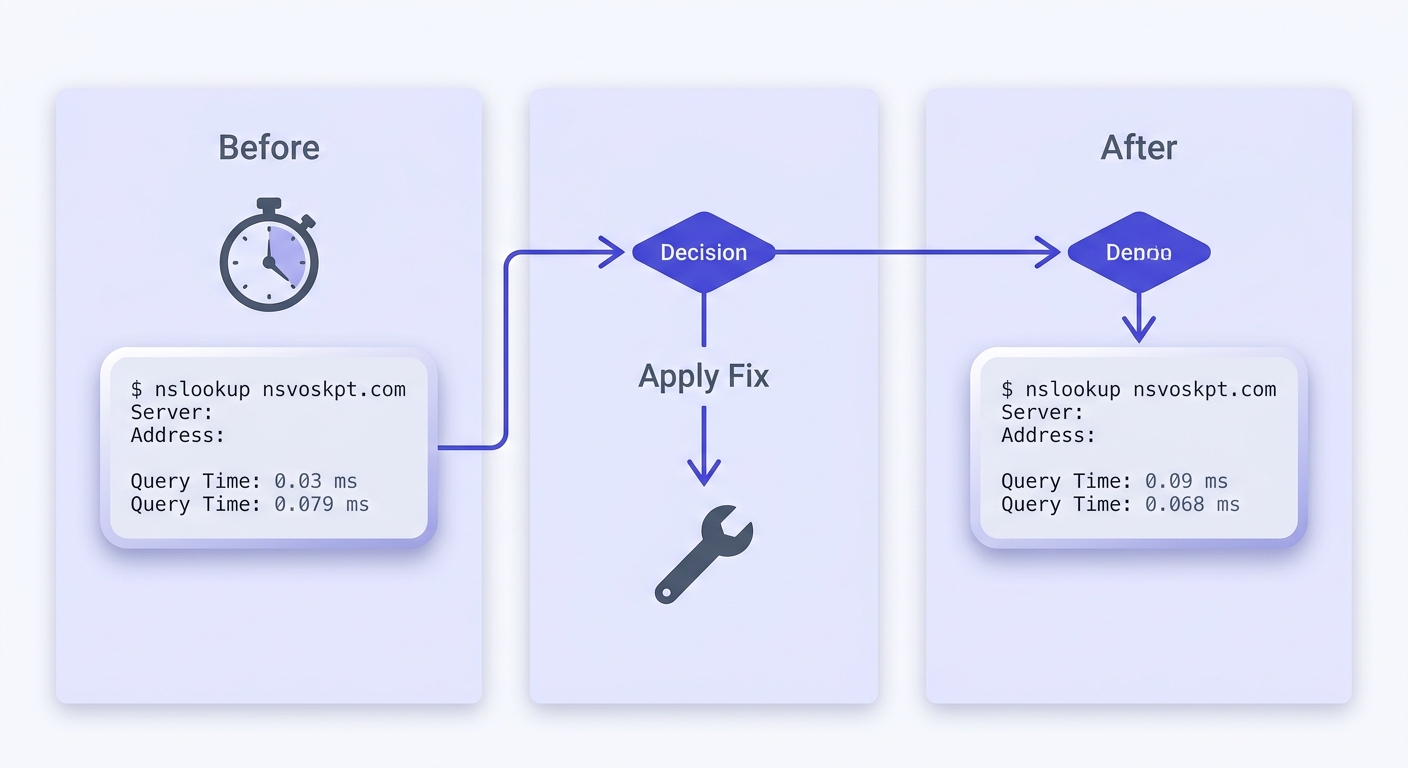
Baseline before touching anything. Run nslookup example.com or dig example.com and record the query time and server address. Apply one fix. Flush the cache. Run the same command. If the number moved, that fix worked. If it didn't, move to the next one. This is how you avoid convincing yourself a placebo worked.
When the problem is your domain's DNS, not your resolver
Everything above assumes you're troubleshooting your own machine or network. But if visitors are reporting slowness that you can't reproduce locally — or if you're a sysadmin and a specific domain's page loads are slow for everyone — the problem may be on the authoritative nameserver side, not the resolver side.
TTL values. Every DNS record has a Time To Live — how long resolvers are allowed to cache the answer before re-querying. If you've set your A or MX records to a TTL of 60 or 300 seconds, resolvers are re-querying your nameserver every 1–5 minutes instead of every hour. That's unnecessary load on the nameserver and unnecessary latency for users whose cached answer just expired. For stable records, 3600 seconds (one hour) is the right default. Use short TTLs only during a planned migration, then raise them again afterward.
Use a DNS propagation checker to verify how fast a TTL change is spreading across global resolvers after you make it. You can also run a DNS lookup on your domain's records directly to see current TTL values and authoritative response times.
MX record ordering. If you have multiple MX records with equal priority, SMTP servers sending you mail try each in sequence and wait for a connection timeout on unreachable hosts before moving to the next. This doesn't slow down page loads, but it adds seconds to email delivery. Order your MX records correctly — primary server gets the lowest priority number (e.g. 10), backup gets a higher one (e.g. 20). You can inspect your MX record priority order to confirm the ordering is right.
SPF lookup limits. This one looks like slow DNS but is actually a configuration error. RFC 7208 caps SPF DNS lookups at 10 per evaluation. If your SPF record chains together enough include: statements to exceed that limit, receiving SMTP servers time out during SPF evaluation and either defer or reject your mail. The symptom — mail delivery delays — can be mistaken for slow DNS. Check whether your SPF record is over the 10-lookup limit before assuming the problem is resolver-side.
SPF lookup failures are not DNS failures
When an SMTP server hits the 10-lookup limit mid-evaluation, it returns a PermError result for SPF. Depending on your DMARC policy, this can cause mail to be quarantined or rejected. It has nothing to do with your resolver speed — it's a record configuration problem.
Frequently asked questions
Why is my DNS lookup still slow after switching to Cloudflare or Google DNS?
How do I know if a network adapter is causing slow DNS on Windows?
nslookup example.com in PowerShell. If it takes 8–15 seconds to return but the result is correct, a rogue adapter is almost certainly the cause. Open Device Manager, enable View → Show hidden devices, expand Network Adapters, and look for Hyper-V, WSL, Docker NAT, or old VPN adapters. Check their DNS settings in Network Connections and disable the ones you don't use.What is a normal DNS lookup time and when is it considered slow?
Does flushing the DNS cache actually speed up browsing?
Should I disable IPv6 to fix slow DNS?
nslookup -type=AAAA google.com — if it times out while the A record query resolves instantly, disabling IPv6 on your adapter will fix the slowness. If both record types resolve quickly, disabling IPv6 won't help and removes a protocol that's faster when working correctly.How do I test DNS speed from my own machine?
Resolve-DnsName example.com in PowerShell or nslookup example.com in Command Prompt. On macOS and Linux, dig example.com shows the query time in milliseconds at the bottom of the output. For a comprehensive comparison across resolvers, GRC's DNS Benchmark tests 200+ servers from your actual network location and ranks them by real-world latency.Why does a page load slowly the first time but fast on refresh?
Can slow DNS affect email deliverability or SPF checks?
Slow DNS is almost always fixable in under 30 minutes once you know which layer is the problem. The measurement step is what most guides skip — and it's what tells you whether you fixed the right thing. Run a baseline, apply one change, flush the cache, measure again. If the number moved, you're done. If it didn't, move to the next fix on the list.
Try Valid Email Checker free
Verify any email in under a second
Get 150 free verifications. No credit card. Auto-refund on every Unknown result — the only verifier we know that does this.
- 150 free credits when you sign up
- Auto-refund every Unknown verification (we're the only ones that do)
- 11-stage flow catches what 1-step checkers miss
- Drop-in integrations for Mailchimp, HubSpot, SendGrid, 14 more
Written by
Devon ParkDevon writes about the parts of email nobody puts on a landing page: SPF, DKIM, DMARC, MX records, and the DNS quirks that quietly decide whether your mail lands or bounces. His aim is to turn specs that read like legalese into something you can implement today — usually with the exact record to copy and a way to confirm it worked. When other guides hand-wave past setting up authentication, Devon stops and shows you how.